Transcend Jetdrive lite review (after a year)

My MacBook Pro Mid 2015 has SSD. That is very fast and helps me to be productie. Back in the day 🙄 this kind of storage was expensive so I limited it to 256 Gb. With my Photos, Music and Downloads that space was filling up fast. Here is where the Transcend Jetdrive comes in. Specsheet on transcend-info.com

Note: my MacBook has a SD card slot.

Transcend Jetdrive lite image

I bought the 256 Gb Transcend Jetdrive in October 2018 after some months of internet searching for experiences, youtube watching and reading customer reviews on webshops. This memory card would hold my precious files and it must be solid (no pun intended) Prices have dropped since 2018. I paid €150. Still one of the best purchases I’ve made.

Photos

After installation I moved my Photos library by following the support article on apple.com. The deletion of the old library was scary. All photos are synced with the iCloud photos option with originals downloaded to my MacBook. Backup was in place.

Since the location of the photos library changed the ‘upload’ started again. On apple’s discussion forum it is explained as normal. Just had to wait a day for all checksums to be validated.

Music

Now my music library has to be moved. Again on apple discussion someone has the answer to my questions. Moved the library, opened iTunes (old version of Music) with option key pressed and selected the new music library. Last month downloaded my complete library from iTunes Match because I want a backup of the license free files.

Downloads

Last step was to move my downloads and the default download location. Now a stackexchange thread has the answer.

Conclusion

The end result is a lot of free space on the fast SSD and a backup of all my slow files on the Jetdrive.

No problems after more than a year of usage. Highly recommended!

Posted in Uncategorized | Tagged , , , | 4 Comments

Visual Studio Code naming convention

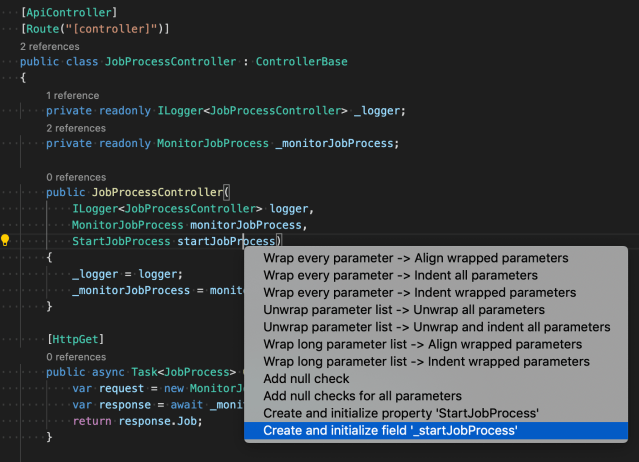
I’ve been using the Visual Studio 2017 naming convention to generate code the way I like. Now I want to apply this behaviour to Visual Studio Code on my MacBook. Private fields should start with underscore:
code suggestion without underscore

First install EditorConfig from the marketplace. This will add the “generate editorconfig” to the Explorer sidebar’s context menu. You can create the file by hand, but this is easier.

Create the .editorconfig file in the root of your project from the context menu in the Explorer sidebar.

Now add the following lines to the .editorconfig file you’ve just created (source: https://stackoverflow.com/a/49428349)

[*.{cs,vb}]
dotnet_naming_rule.private_members_with_underscore.symbols  = private_fields
dotnet_naming_rule.private_members_with_underscore.style    = prefix_underscore
dotnet_naming_rule.private_members_with_underscore.severity = suggestion

dotnet_naming_symbols.private_fields.applicable_kinds           = field
dotnet_naming_symbols.private_fields.applicable_accessibilities = private

dotnet_naming_style.prefix_underscore.capitalization = camel_case
dotnet_naming_style.prefix_underscore.required_prefix = _

Restart Visual Studio Code.

code suggestion with underscore - naming convention applied

As you can see the naming convention is applied to the code suggestion. Now I’m more productive :mrgreen:

Posted in Development | Tagged , , | 1 Comment

My 2019 developer and power user tools

toolbox by vectorolie / FreeDigitalPhotos.net
Below a list of tools I use today. If you’re like me, you check them out and add the ones you like to your own toolbox.

Image courtesy of vectorolie / FreeDigitalPhotos.net

Productivity

DropBox, file share/sync between computers and the internet
Powershell, the automation solution from microsoft
Microsoft Todo, task list on every platform (replaces Wunderlist)
IFTTT, automate the internet
Pocket, my preferred read later list, available on all platforms
Evernote, remember everything. I use it for my GTD technique called The secret weapon.
1Password, my password is ⌘ + \
Autohotkey, run macro’s on keyboard shortcuts like CTRL+ALT+5 types €

Development

Visual Studio 2017, the best IDE out there
Chrome, best browser today
NuGet, source of all the good in the world
Visual Studio Gallery, extend visual studio
Ghostdoc, CTRL+SHIFT+D to comment your code, that simple
Specflow, cucumber for .net for behavior driven development (BDD)
Just Decompile, see the code of .net assemblies
Fiddler, log http calls via this proxy
Wireshark, deep logging of network traffice
Notepad++, notepad on steroids
Pester, test and mock framework for PowerShell.
Seq, structured logging solution with GUI
SonarQube, we use it to automate our code reviews

Misc

ZoomIt, I use this in all my demos to zoom
Docker Desktop, host applications, just download and run, don’t install
Code Notes, A simple code snippet manager for developers

Mac

Cyberduck, connect to anything
DaisyDisk, see what is hogging your hard disk space
Type2phone, make my mac a Bluetooth keyboard for iPad or AppleTV
Handbrake, convert movies
Little snitch, monitor network traffic coming from your mac
HyperDock, preview windows from the dock
Alfred, spotlight replacement with lots of options
Parallels, the virtualisation solution for mac
Sublime Text, very complete text editor for code
Visual Studio Code, code editor for any platform
Gimp, freeware photo editor with all the bells and whistles you’ll need
Amphetamine, keep your mac awake

iPhone/iPad

Tweetbot, easy twitter client with pocket integration
Spark, handles my e-mail and offers tasks like send to evernote or pocket
Pocket, I do my reading mostly on iPhone or iPad
Duet, use your iPad as an extra screen
Lightningtalktimer, timer app that changes appearance with time passed

Some of the tools cost money, some are free, some offer paid options. If it saves you time or improves your work, why not support the developer that made it possible?

Also see My 2018 developer and power user tools post.

SaveSaveSaveSaveSaveSaveSaveSaveSaveSaveSaveSaveSaveSaveSaveSave

Posted in Tooling | Tagged | 1 Comment

EF codefirst migrations and Cloud Foundry

We’re using the hosted Cloud Foundry solution for development at http://run.pivotal.io.

octocat logo from githubSo everybody can hit the floor running I’ve created a template for using Entity Framework Codefirst migrations in a dotnet core web application hosted on Cloud Foundry.
The key aspects are:

  • database is linked service (attached resource in 12-factors)
  • migration in task (admin one-off process in 12-factors)

Image from press kit on github.com

Complete documentation with code on my EF-codefirst-migration repository on github.com

References

https://12factor.net The twelve-factor app

Posted in Development | Tagged , , , | Leave a comment

Cloud Foundry Task with dotnet app

We’re investigating the CF run-task command from the cli. This is used to execute tasks that run to completion, like database migrations or print something to the console 😉

Hello console

We’ve created a new console project. The main function will print the first command-line argument. Everybody is familiar with “hello world“.

The key to getting this to work on Cloud Foundry is the manifest.yml:

applications:
- name: hellotaskworld
  path: bin/Debug/netcoreapp2.0/
  instances: 0
  memory: 256M
  no-route: true
  buildpacks: dotnet_core_buildpack

instances: 0 makes sure the container is not started. It would crash-and-burn since the application exits after it prints to the console. Cloud Foundry wants to have continuously running applications like a webapp.
no-route: true binds no route to the application. It cannot serve web requests.
path: bin/Debug/netcoreapp2.0/ together with buildpacks: dotnet_core_buildpack pushes the assembly and leaves the dotnet runtime in the container

After a CF PUSH we can run the application with the CLI:

cf run-task hellotaskworld "dotnet ./HelloTaskWorld.dll eric" --name hello-eric-task
cf tasks hellotaskworld
id   name             state      command
3    hello-eric-task  SUCCEEDED  dotnet ./HelloTaskWorld.dll eric

To get the console output we request the logs

cf logs hellotaskworld --recent
[CELL/0] OUT Creating container
[CELL/0] OUT Successfully created container
[APP/TASK/hello-eric-task/0] OUT Hello eric!
[APP/TASK/hello-eric-task/0] OUT Exit status 0
[CELL/0] OUT Stopping instance 1dc5766e-f3f4-4b0d-9332-e1e761db911d
[CELL/0] OUT Destroying container
[CELL/0] OUT Successfully destroyed container

Success! We’ve send our message to Cloud Foundry.

Hello web

What about web applications? We will be deploying our website to Cloud Foundry and want our hello eric (or database migration, file cleanup, backups, …) to be run from that application.

With dotnet core the starting point of a web application is again the Main function. We can check the command-line arguments for our custom tokens.
❗ warning ❗ Cloud Foundry uses command-line arguments to configure the application: ./websitename –server.urls http://0.0.0.0:1234. Make sure your argument name is different/unique.

public static void Main(string[] args) {
    if (args[0] != "--name") {
        BuildWebHost(args).Run();
    } else {
        // start task and print to console
        Console.WriteLine($"Hello {args[1]}");
    }
}

The manifest is very simple since the main use case is a web application.

applications:
- name: webwithtask
  instances: 1
  memory: 256M

After a CF PUSH we can run the application with the CLI. The location of the assembly we got from the logging of the PUSH which shows the command to run

type:            web
instances:       1/1
memory usage:    256M
start command:   cd ${DEPS_DIR}/0/dotnet_publish && ./WebWithTask --server.urls http://0.0.0.0:${PORT}
     state     since                  cpu    memory         disk           details
#0   running   2019-09-06T10:24:32Z   0.0%   156K of 256M   104.2M of 1G   

Now we can start the task by adding the –name parameter to get to the else branch in the main function.

cf run-task webwithtask "cd /home/vcap/deps/0/dotnet_publish && ./WebWithTask --name eric" --name hello-eric-task
cf tasks webwithtask
id   name             state      command
1    hello-eric-task  SUCCEEDED  cd /home/vcap/deps/0/dotnet_publish && ./WebWithTask --name eric

To get the console output we request the logs

cf logs webwithtask --recent
[CELL/0] OUT Creating container
[CELL/0] OUT Successfully created container
[APP/TASK/hello-eric-task/0] OUT Hello eric
[APP/TASK/hello-eric-task/0] OUT Exit status 0
[CELL/0] OUT Stopping instance 12af1740-dec5-4975-96a8-85713102045d
[CELL/0] OUT Destroying container
[CELL/0] OUT Successfully destroyed container

Success! We’ve send our message to Cloud Foundry.

References

https://docs.cloudfoundry.org/devguide/using-tasks.html
https://github.com/cloudfoundry/dotnet-core-buildpack/issues/163
https://dotnet-cookbook.cfapps.io/core/app-startup-tasks/

Posted in Development | Tagged , | Leave a comment