Week roundup

Last week recap and links:
Image courtesy of kanate / FreeDigitalPhotos.net

Image courtesy of kanate / FreeDigitalPhotos.net

What are your best reads this week? Leave them in the comments below.

Posted in Uncategorized | Tagged , , , , , , | Leave a comment

Nuget packages folder one level up

nuget logoWe had some issues with our nuget server. Every other build would fail because of a failing nuget restore. We decided to stop restoring the nugets and put them in source control.

Adding the nugets will increase bytes in source control. We want to limit this by moving our packages folder one level up. This way all solutions will use the same packages folder for their nugets. No duplicates = less bytes.

The process is well explained in this answer on stackoverflow. In short:

  • Edit the nuget.config to set a repositorypath to $\..\..\..\packages and disableSourceControlIntegration to false.
  • Then edit the nuget.targets to set PackageDir as $(SolutionDir)\..\packages.
  • Fix the references in the project files

We documented this and instructed the team to make the changes on every (new) solution. New solutions will not need to fix the references as new projects use the correct path to the nuget / packages folder.

The nuget server issue turned out to be a duplicate package. The packages had different names, but with identical nuspec information. After removing the duplicate everything was fine again.

Posted in Development | Tagged | Leave a comment

iPad as third screen

When presenting I’m using the setup below. The big screen, my laptop and iPad all have an important role.

Duplicate laptop and big screen
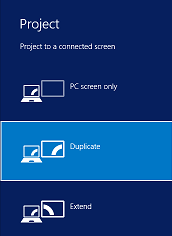
project_screenUsing “Windows-Key + P” you can select the setup for one extra screen.

The big screen is a Duplicate of my laptop screen. This way I can see what the audience is seeing right on my laptop. Also my demo’s are on the laptop screen and thus visible on the big screen, no need to type looking over my back.

If this is your complete setup disable the presenter view on the Slide Show tab in powerpoint.

Extend to iPad
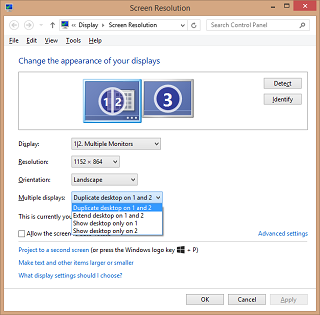
screen_resolution_multiple_monitorsI’m using my iPad as a third screen. For this I installed Duet Display. My iPad will show the presenter view as it is configured as Extend my desktop in Windows.

Windows 8.1 lets me configure this setup in the Screen Resolution. Select Monitor 1 or 2 and specify the Duplicate desktop on 1 and 2 option. For monitor 3 (iPad) select Extend desktop.

Prepare for the worst hope for the best

My talk at sdn was my first go with this setup. After some dry runs I knew the correct setup and possible problems. On the video you’ll see somewhere at the end that the screen flickers. I did have a backup plan: use the Duplicate laptop and big screen setup from above. But the setup recovered and all was well again.

Below the setup with an extra monitor in stead of a projector. In the middle the iPad (mini) with the presenter view.
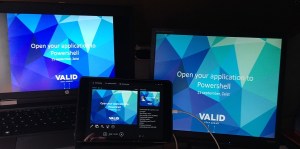
three_monitor_setup
Now you know how I setup during presentations. Be sure to test what works for you and always have a backup plan.

References

Art of Speaking by Scott Hanselman
Duet Display to use an iPad as an external monitor
Powerpoint multi-monitor support


Posted in Tooling | Tagged , , | Leave a comment

Week roundup

Last week recap and links:
Image courtesy of kanate / FreeDigitalPhotos.net

Image courtesy of kanate / FreeDigitalPhotos.net

What are your best reads this week? Leave them in the comments below.

Posted in Uncategorized | Tagged , , , , , , , | Leave a comment

Nuget by hand

nuget logoOur project needs to handle messages from other project(s). These messages are copied across source control. This makes a mess of versioning. We offered to make a Nuget and distribute this from our company feed.

Nuget has written documentation about packaging a project. Waiting for the tools we decided to do a dry-run by creating the Nuget by hand.

How to create a Nuget

First step is to create a nuspec file. This can be done by writing (notepad) it or by generating it with nuget spec. We removed the licenseUrl and projectUrl but provided a iconUrl just for the fun of it.

Next is creating the Nuget file. Using nuget pack projectfile.csproj we packaged the assembly. The resulting Nuget file is copied to a fileshare. In the nuget.config generated while activating nuget restore we provide the fileshare as a nuget source.

The project is build using the Nuget from the fileshare.

What’s next

When the tools arrive a “real” Nuget will be created and published to our company feed. Then we update our nuget.config to exclude the fileshare as a nuget source. The buildserver will then use the “real” Nuget. Bob’s you uncle.

References

Creating and Publishing a Package on nuget.org
Nuget package template by eyecatch.no
Nuget Package Explorer on codeplex.com

Posted in Development | Tagged | Leave a comment