Installation of Tfs Express and why I love tfspreview.com

Pratice what you preach. My advice is to add unittests with codecoverage to your (daily) build and make sure it’s above the threshold. To pratice this I installed Tfs Express this weekend.

The installation was straight forward next-next-finish. But then the first problem: error tf30172 on create new project. So I tried to log in to the webinterface. Not possible with an account without password. I created a password and logged in. Set the Create new projects right to allow and tried again. No success. Some internet search explained this as an version clash, I was using Visual Studio 2010. Installed Team Explorer 2012 and was able to create the project.

My project contains some unittests I want to run during the build. Added them to the builddefinition, but code coverage was not executed. The log showed an XML validation error: XSD violation: The ‘enabled’ attribute is not declared.
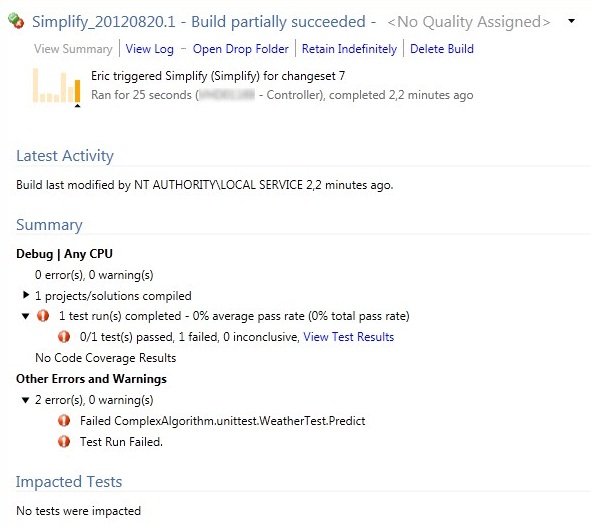
local build report with XML validation error under View Test Results
Another internet search pointed in the direction of another version clash. I cannot convert to Visual Studio 2012 on my production machine. This train comes to a stop.

Solution here by installation of Visual Studio 2012

On the techdays I got an invite key to tfspreview.com the Team Foundation Service in the cloud. As this is an SAAS solution there was no installation, only registration. There is a webinterface for adding projects, managing rights and everything I wanted. After installing a small add-on to log in from Team Explorer 2010 with my live-id, I could create a builddefinition. With unittests and code coverage being done in the cloud. This is how it should be.
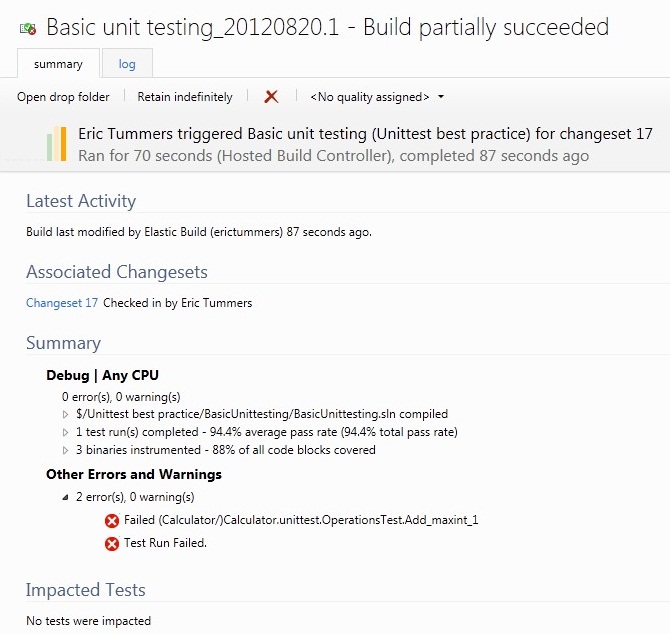
tfspreview build report with unittest and code coverage results

Tfspreview is – as the name sugests – preview software and free. Things could go wrong. And when the pricing models get published your projectmanager might want to go back on premises again. Which is equal good, it only takes more time setting up. But for now I’m choosing the easy way of SAAS.

Posted in Tooling | Tagged , , , , , , , , , , , | 1 Comment

Recovery

The hard disk of my laptop died on me last week. Since I’ve ordered a new machine (see previous post) I wanted my system up-and-running without too much effort. An old disk fixed the hardware issue, now the software recovery.

Backups always work. Restores fail all the time.

Last christmas I decided to use SafeCopy as the cloud based solution to backup my files. I bought the 200Gb package and setup all my machines at home to backup files with the software provided. The initial backup took 24 hours per machine, but that is what vacations are for :).

Next to the SafeCopy backup I copy the files to and external disk every month. For this I use the Microsoft SyncToy and set it to contribute, which means files are added and replaced, but never removed. The VHD that I work with is copied too.

I installed Windows 7 on the new/old disk and copied the VHD to it. The I used bcdedit to add the VHD to the boot list. (steps here) The whole process took me about an hour.

My luck was that I was anticipating a new machine this month. My Team Foundation workspace had no checkouts and changes were safely in a shelveset. New files are on the SafeCopy cloud drive and older files are also on my external disk. I lost nothing with this crash. When my new machine arrives I will be setting up SafeCopy again and continue to use my backup plan as described above.

Posted in Tooling | Tagged , , , , , , , , , , , , , | Leave a comment

Choose Your Own

My boss lets me choose my own device to work with. Given a budget, some basic rules, two default configurations and this employee is happy. But now the hard part: what do I choose?

Most of the time I’m using Visual Studio to program and test a solution of 200+ projects. An SSD would be nice. Also some extra cores and an overload of memory are on my list. But as always in life I need to prioritize or my budget will be insufficient. I narrowed the list down to two devices:

  1. HP Folio the ultrabook with solid state drive or
  2. HP 6560b HP Probook 6570b a workhorse like the one I’ve been working with the last 3 years

Here is a table with the most interesting specs compared

HP Folio Hp 6560b HP Probook 6570b
Processor Core I5 2467M 1.60 GHz Core I5 2540M 3320M 2.60 GHz
Memory 4 Gb 8 Gb
Disk 128 Gb SSD 320 Gb 7200 rpm
Screen 13.3 inch (1366 x 768) 15.6 inch (1600 x 900)
Video Intel HD Graphics 3000 Intel HD Graphics 4000
AMD Radeon HD 7570M

The reviews on notebookcheck.net (Folio, 6560b No review for 6570b yet) showed the Folio wins the PCMark but the 3D stuff is (almost certain) for the 6560b 6570b.

My google searches all pointed to the fact that compiling is mostly about processor than it is about the disk. The best choice of the two would be the 6560b 6570b, but why go the logical road? to be continued …

[edit August 27, 2012]
HP Probook 6560b replaced with 6570b model in CYO. Better CPU and Video. I’ll expect same or better performance.
Also thinking about putting a 128Gb SSD in the probook.
[/edit]

Posted in Tooling | Tagged , , , , , , , , , , , | 4 Comments

Code generation from Visual Studio UML class diagram

In the Ultimate edition of Visual Studio 2010 Microsoft has put the Architecture feature. With this I can create Graphs, Layer and UML diagrams. The feature is readonly in the Premium edition, but I’m not sure it can generate code and that is what I’m going to do.

First I create a new UML class diagram. From the toolbox I add some classes (blue and orange), some interfaces (purple and green), two packages and the dependencies, interface implementations and inheritance.
screenshot of the uml class diagram

In this sample (download at end of this post) I design a WCF service with a DataContract, an IServiceContract and the ServiceImplementation. The ServiceImplementation must use a best-practice of ours and call the business layer, which must call a factory to create a data layer manager for accessing data. This way an implementation for hosting in Windows Azure can be accomplished by inheritance. The specifics for the platform or different storage can be overwritten, leaving the general stuff untouched.

A design looks nice on the wall printed in poster format. But why not use it to kickstart the development and generate the projects, classes and interfaces? Microsoft must have been thinking the same and offers the Generate Code option in the context menu. The default T4 templates and some other things used for the toolbox items can be set in Configure Default Code Generation Settings ….
Screenshot of Configure Default Code Generation Settings

In the sample I used the Body Conditions property of a method to generate implementation and the Default property of a property to generate a default return. For this I modified the default ClassTemplate.t4 and saved it in a new file (added to the sample project). Then I set the default T4 for a class to this new file in the Configure Default Code Generation Settings ….

Every element on the classdiagram can be linked to a custom T4 template. In the model I defined the DataContract as an Interface, because I wanted it to get placed in a different project together with the IServiceContract and the interfaces. This can be done again in the Configure Default Code Generation Settings …. As the DataContract isn’t realy an Interface but a Class, I had to overwrite the output with a custom T4. Be sure to check the order in which the T4 are executed as I try to explain on the msdn forum.

Here is the Modeling sample project. This should work out-of-the-box as all settings and files are included. If you get it working without the Visual Studio Ultimate edition please let me know or leave a comment.

Posted in Development | Tagged , , , , , , , , , , , , , , , | 1 Comment

Executing Unittests in parallel

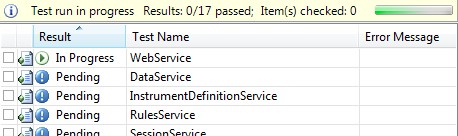
My machine has a multi core processor, but my unittests only run one at a time.
screenshot of one unittest executed at a time

In Visual Studio 2010 the option to use more than one core and run unittests in parallel is there, but well hidden in the testsettings. You can change the default behavior (no parallel execution = 1) to automatic (0) or the number of cores you want to use. Open the local.testsettings file from the solution explorer with the XML editor. Locate the Execution tag and add the attribute parallelTestCount=0 to enable automatic parallel execution when available.
screenshot of testsettings in XML editor showing parallelTestCount attribute in Execution tag

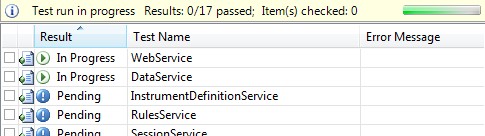
After setting the parallelTestCount to automatic my unittests run in parallel on my dual-core machine. You might want to restart Visual Studio or do a clean build.
screenshot of two unittest executed in parallel
The execution time of the 17 unittests in my solution was sliced in half this way: 2 seconds to 1 second.

Read some of the details what is and isn’t possible on the MSDN blog post about executing unit tests in parallel: http://blogs.msdn.com/b/vstsqualitytools/archive/2009/12/01/executing-unit-tests-in-parallel-on-a-multi-cpu-core-machine.aspx

Posted in Test | Tagged , , , , , , , , , , | Leave a comment