First I archived the custom applets to make room for the restore. To archive an applet open it and click on the settings. At the bottom there is an Archive button. Now I have room for 3 custom applets.
Open your archive (https://ifttt.com/archive) and click the applet(s) to restore. A click is all that’s needed to restore an applet from the archive – as long as you’ve got the space. Remember free users are limited to 3 custom applets.
After the restore you need to connect (activate) the applet. On the home page (https://ifttt.com/home) open the applet by clicking it. Now click on Connect and the switch animation will flick to connected. – done
Custom applet restored
Tip for free users: browse the library (https://ifttt.com/explore) on IFTTT and activate common applets from there, they will not count to your limit of 3. I’m using lots of different applets that do the same – send rss items to pocket – here are some of them:
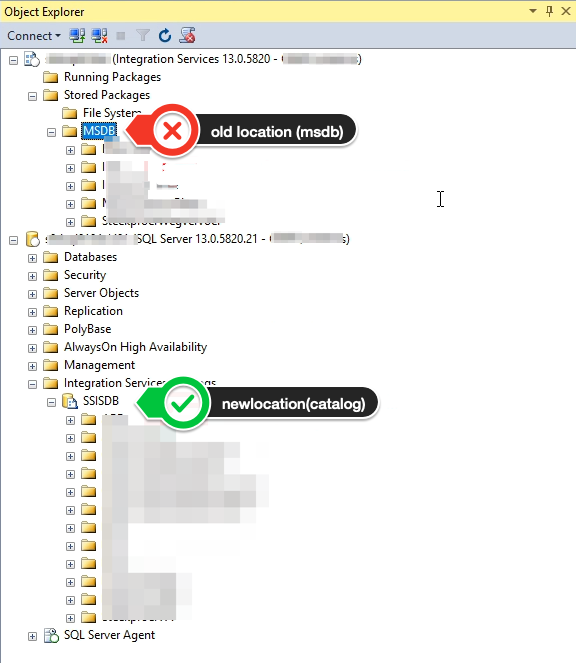
We use Sql Server Integration Services (SSIS) to import text files into our database. The dtsx files are deployed into the MSDB on the Sql Server. Everything works well with deployment with a powershell DSC script. But times change and we must deploy the packages to the catalog. Here is what we did.
Convert
The first step is to convert the project. We used the “Convert to Project Deployment Model” wizard that is started from the Project menu or the context menu in the Solution Explorer. Because this is a lift-and-shift we don’t replace the configuration bij parameters, so in the step “create parameters” we unselect everything. After the conversion we can still open the “Package Configuration” and see the properties are set from there.
Build
The reason we converted the project is because we need an .ispac file for the release to the catalog. During the build the ispac file is created. We gather alle dtsx and ispac files in an atrifact.
Deploy
Deployment will take the new ispac files in the artifact. With the code sample from microsoft (see references) we install the ispac into the catalog with DeployProject. This change is in the powershell DSC.
Conslusion
Our SqlJobs had to load the package from the catalog now. This was a minor change:
SET @Command = N'/SQL "\"\FOLDER\PACKAGENAME\"" /SERVER "\"' + @Server + '\"" /CHECKPOINTING OFF /REPORTING E’
SET @command=N'/ISSERVER "\"\SSISDB\FOLDER\PROJECTNAME\PACKAGENAME\"" /SERVER "\"' + @Server + '\"" /CHECKPOINTING OFF /REPORTING E'
After these steps the SSIS packages are in the catalog. The impact on the system is minimal because the sqljob remains on the same location and handles the location change. Happy dev, happy dba.
I’ve setup my Wifi router with timed access. This allows internet for certain time slots and denies access outside these time slots. After installing iOS 14 on both my iPad and iPhone I noticed no internet for me too. But I have my own rules based on the MAC address of the devices.
Turns out there is a Private Address option (enabled by default) that spoofs your MAC address to reduce tracking across different Wifi networks. I had to turn that off to get internet. Here is where you can find it. Go into settings > Wi-Fi and press the little i after the Network to get to the page in the screenshot. If you flip the switch on Private Address everything is alright.
We have an asp.net webapplication (full framework) and deploy it using release manager. The bits are in an artifact that is created during build with the contents of the webdeploy zip and a powershell desired state configuration (dsc) script to install te webapplication. Somewhere in the powershell script we use the xTokenize DscResource to set the connectionstrings and other settings.
build performs web.config transformation to remove the debug (and other things) also replaces the connectionstrings with the __TOKENS__ ,
–
–
release copies the web.config to the wwwroot directory,
–
xTokenize replaces the tokens in web.config with actual values
To stop the build from replacing the connectionstrings we defined a publish profile. The publish profile creates a pubxml file with the same name as the profile. We added the following line to the pubxml to stop the transformation of connectionstrings:
Remember to use the /p:PublishProfile=YOUR_PROFILE_NAME in the build, else the connectionstrings are transformed since it is the default behaviour.
Now our web.release.config contains some more lines that replace the connectionstrings with the __TOKENS__ (we think that is a good thing) and the web.token.config had been removed.
The results are the same working webapplication, but the way to get there is less crooked.







 .NET Development by Eric