Remote powershell or how I manage my local Hyper-V machines

powershellFor testing I’ve created some Hyper-V machines on my Windows 8.1 laptop. The burden of deploying software to these virtual machine has been resolved by powershell scripts on the virtual machines. The script is just a simple stop-service, copy new assemblies, start service.

But this still forces me to remote desktop/connect to the virtual machine and start the script from there. An extra icon on the taskbar, an extra ALT-TAB, it started to bother me. That is when I get in the zone and make it work.

Virtual machine

To enable remote powershell the winrm service must be runnning. Also the firewall must allow access over port 5985. Both can be done with powershell.

Get-Service winrm | Start-Service
Enable-PSRemoting -Force

The firewall rule created allows access from the local subnet. Enough for my (local) Hyper-V machines. You can always remove the subnet limitation and allow all IP addresses. Remember this is a test machine.
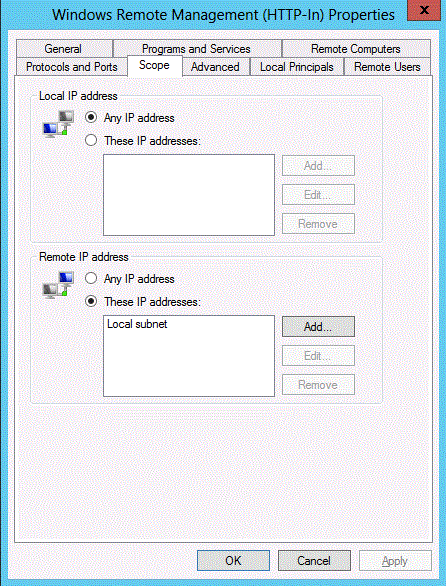
winrm_firewall

Host machine

On my development/host machine the winrm service must be running. To allow access to the virtual machine the connection must be https (requires certificate) or the machine must be added to the TrustedHosts. I go with the latter option, since it’s the quickest solution. Again this can be done with powershell.

Get-Service winrm | Start-Service
winrm s winrm/config/client '@{TrustedHosts="remote_computer"}'

Now I can open a session to the virtual machine.

Enter-PSSession -ComputerName remote_computer -Credentials $prompt

No more remote desktop when deploying and testing my development work on hyper-v machines.

References

Enable and Use Remote Commands in Windows PowerShell, microsoft technet magazine tip

Posted in Tooling | Tagged , | Leave a comment

Week roundup

Last week recap and links:
Image courtesy of kanate / FreeDigitalPhotos.net

Image courtesy of kanate / FreeDigitalPhotos.net

What are your best reads this week? Leave them in the comments below.

Posted in Uncategorized | Tagged , , , | Leave a comment

Our iceberg is melting

220px-Emperor_penguinsI’ve read a book called Our iceberg is melting. It was recommended by David Star in his Scrum fundamentals cource.

The story describes a group of penguins that are forced to change their way of living. One penguin discovers the iceberg the’re all living on is melting and informs the leaders of the group. The way the penguins handle the situation is described in Kotter’s 8-step process for leading change.

I liked the story because the writer uses my kind of humor. That it describes the process of change is a bonus.

* Image courtesy of wikipedia

References

Our iceberg is melting bookstore.
Scrum fundamentals cource on Pluralsight.

Posted in Uncategorized | Tagged , , | Leave a comment

Github 2FA from Visual Studio 2013

Tried to sync some changes to my Trello repository on Github but got prompted for my credentials. I remembered activating two-factor authentication (2FA) just recent. Would I be prompted for the one-time-password (OTP)? No, a 401 unauthorized was the answer.

A quick google search learned me what I expected; create a token for the dumb older application. This can be done on https://github.com/settings/tokens. Leave the defaults for Visual Studio 2013 to commit and pull changes.

personal_access_token_github

After you generate the token copy-and-past it into the credential dialog. Check the Remember my credentials or save the token somewhere because after you leave the page there is no way to retrieve the token itself. You can regenerate the token, but this means the old token is no longer valid. Other operations are updating the permissions or deleting the token.

Two-step authentication is becoming the standard. Tools like 1Password and Google Authenticator offer the one-time-passwords. Fallback to tokens is only temporary until all tools adapt to this new way of security.

References

Github and Visual Studio and two factor authentication</a [blogpost]
1Password, password manager with OTP
Google Authenticator, google implementation for OTP

Posted in Tooling | Tagged , , | Leave a comment

Week roundup

Last week recap and links:
Image courtesy of kanate / FreeDigitalPhotos.net

Image courtesy of kanate / FreeDigitalPhotos.net

What are your best reads this week? Leave them in the comments below.

Posted in Uncategorized | Tagged , , , , , , , | Leave a comment