Seq dashboard

We’re using seq for logging the completion of an import. To monitor the progress of importing a lot of file we’ve created a dashboard in seq.

The log entries are identified by having a property (uuid) and a date / time when the entry was logged. The query for a (completed) import looks like this:

select count(*) as count 
from stream 
where Has(uuid) 
AND @Timestamp <= DateTime('2018-12-04 07:50:00 +1') 
AND @Timestamp >= DateTime('2018-11-29 20:54 +1') limit 1

We configure the style of the query to display as value and the number of processed files is displayed. Now we set the dashboard to auto refresh every hour. This will keep the number displayed updated once every hour.

The end result is “stunning” when you realise the configuration is dead simple.

Little quirk: to filter untill a certain date/time we needed to use <=, because < only didn't work.
Posted in Development | Tagged , , | Leave a comment

Manage windows service with asp.net core webapi

We’re building a webapi for our administrators. One of the features is stopping and starting a windows service on the webserver the webapi is hosted on. We needed to allow our application pool user to manage the windows service. For this we use the sc.exe tool.

First we collected the security descriptor (SID) for the application pool user with the code below.

$account = new-object System.Security.Principal.NTAccount("apppooluser");
$account.Translate([System.Security.Principal.SecurityIdentifier]).Value;
# output S-1-5-21-1003698448-2199609630-2888039566-500

Now we used se.exe to get and set the ACE for the windows service. The output of the first statement is used in the second statement, with the SID from above added before the S:

sc.exe sdshow Spooler
# output "D:(A;;CCLCSWLOCRRC;;;AU)S:(AU;FA;CCDCLCSWRPWPDTLOCRSDRCWDWO;;;WD)"
# add the apppooluser to the list in the D: section
sc.exe sdset Spooler "D:(A;;CCLCSWLOCRRC;;;AU)(A;;RPWPCR;;;S-1-5-21-1003698448-2199609630-2888039566-500)S:(AU;FA;CCDCLCSWRPWPDTLOCRSDRCWDWO;;;WD)"
# [SC] SetServiceObjectSecurity SUCCESS

Breakdown of the setting:

Code Explained
D: dacl_flags are used
A ACCESS_ALLOWED_ACE_TYPE
RPWPCR ADS_RIGHT_DS_READ_PROP ADS_RIGHT_DS_WRITE_PROP ADS_RIGHT_DS_CONTROL_ACCESS
S-1-5-21-1003698448-2199609630-2888039566-500 SID of the apppooluser

Now we can start and stop the windows service from our webapi. We added authentication and authorisation to the webapi to control who can perform the actions. Check-in and release this features. Done.

References

Security Descriptior Definition Language
ACE strings
Sc sdset
SC.exe

Posted in Development, Security | Tagged , , , , | Leave a comment

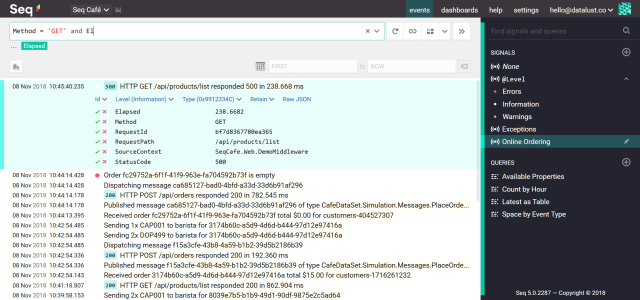
Seq

Seq creates the visibility you need to quickly identify and diagnose problems in complex applications and microservices. Empower your team to build better software by centralizing, searching, and alerting on structured application logs.
https://getseq.net

source https://getseq.net
Image source https://getseq.net

Every project we used to create our own logging tables and GUI to access those tables. No More!

We now install Seq in the first sprint and start logging. Seq provides the right toolset to investigate issues, gives insights we never seen before and is free if you can live with the limitations. Purging the logging after a set timeinterval is part of the features. And everything is done from a web interface.

So far we’ve learned that you need to log on different levels and you’ll need a structured logging nuget like serilog.

Want to start logging too? Here are some links:

Posted in Development, Tooling | Tagged , , | Leave a comment

Serilog – structured logging


Image courtesy of Ricardo Gomez Angel / unsplash.com

https://www.nuget.org/packages/serilog

With Serilog we can log with named properties. The advantage is that processing of the log(file) is no longer needed as it is already structured. You can stil output plain text though.

Posted in Development, Tooling | Tagged , , | Leave a comment

Cannot upload task attachment file

We run Pester tests during our tfs release. The output is published as test results and saved to the log files. To save the output.xml to the log file we use task.uploadfile from azure pipeline tasks. This task failed because we had a space between the closing bracket and the file parameter.

##[section]Starting: Add output.xml to log files
==============================================================================
Task         : PowerShell
Description  : Run a PowerShell script
Version      : 1.2.3
Author       : Microsoft Corporation
Help         : [More Information](https://go.microsoft.com/fwlink/?LinkID=613736)
==============================================================================
##[command]. 'C:\Users\service\AppData\Local\Temp\277e9445-a3b5-4910-8cba-5e0aadfedc7e.ps1'
##[error]Unable to process command '##vso[task.uploadfile] D:\Software\TFS\Agents\1\work\r10\a\output.xml' successfully. Please reference documentation (http://go.microsoft.com/fwlink/?LinkId=817296)
##[error]Cannot upload task attachment file, attachment file location is not specified or attachment file not exist on disk
##[section]Finishing: Add output.xml to log files

The solution was to make sure there was nog space between the closing bracket and the file parameter in the powershell task:

Write-Host "##vso[task.uploadfile]$(System.DefaultWorkingDirectory)\output.xml"
# there is no space -here---------^
Posted in Development | Tagged , , , , | Leave a comment
