Automate downloads folder structuring

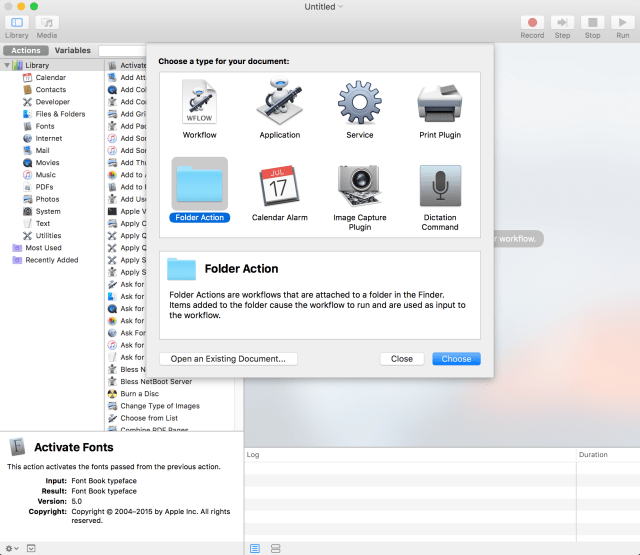
My downloads folder is finally structured. For this I used the Folder Action in Automator. This is a workflow that triggers when a new file is added to a certain folder.

automator_folder_action

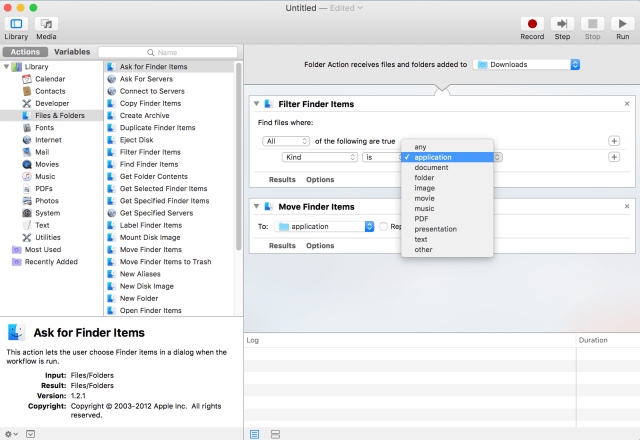
The automator in Mac OS X provides a drag-and-drop programming experience. I dragged the Filter Finder Items and the Move Finder Items into the workflow. The Filter Finder Items validates the downloaded file is an Application. The Move Finder Items moves the downloaded Application to the applications folder.

automator_workflow_filter_finder_items_application_kind

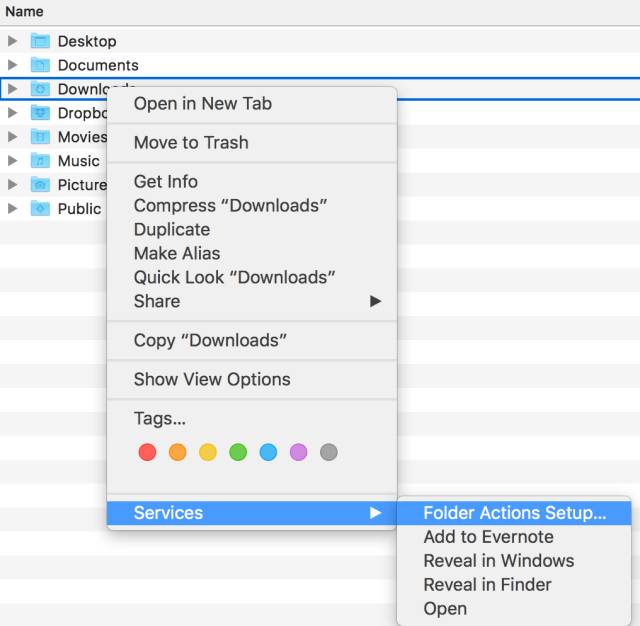
After saving the folder action/workflow you can find it under the Services context menu of the Downloads folder.

folder_actions_setup_in_services

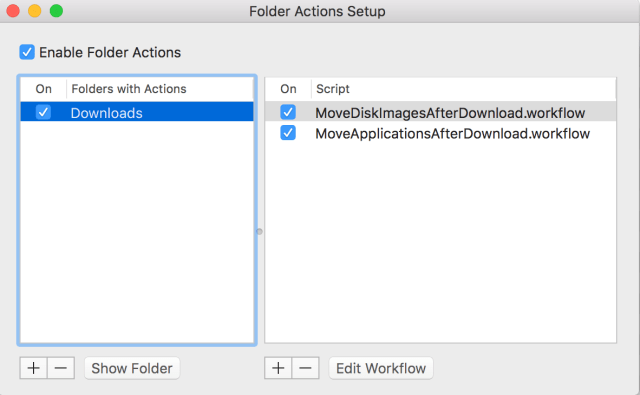
folder_actions_setup

I’ve created a Folder Action for disk image and application. When I download a new file type I will create a new Folder Action.

A little less time in the Not Important eisenhower box and more time to be productive.

Posted in Tooling | Tagged , , | Leave a comment

Branching

My new project uses branching in TFS. Every project to improve the product is done on a branch. This is correct use of TFS, since it is a Application Lifecycle Management tool. In this post I’ll describe how I merged back to the Main branch and created a new branch for the next project on the same product.

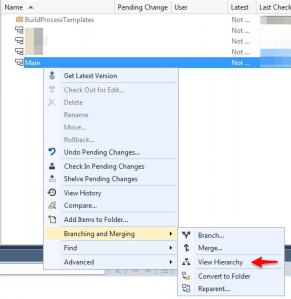
The source explorer shows 4 branches. One branch is the mother of the other branches, this is called Main. The other branches are named after the project. To see the hierarchy in Source Explorer select a branch and choose View Hierarchy in the context menu.
branch_view_hierarchy

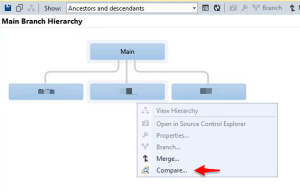
In the hierarchy view you can compare two branches by selecting both. Then choose Compare in the context menu. You’ll get a dialog with the source and target for the compare set to the branches.
branch_compare_branches

Together with the history of both branches I noticed some potential issues.

  1. A file was added to Main after the branch was made. How will the merge process handle this?
  2. A file was edited in both branches after the branch was made. Which is the correct version?

I consulted the persons who performed the checkins. We looked into the files and decided what the result of the merge should be. During the merge process (select the branch to merge to Main) TFS had one conflict it could not resolve. This was the extra file (1) in the list of potential issues above. With merge changes in merge tool I included both changes into the project file. The rest was auto resolved and a clean build showed no issues. To make it really sure I checked the edited file (2) from the list of potential issues above. It was handled correctly.

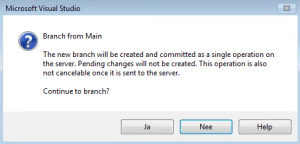
After the merge process I made a new branch. TFS notified me that this is an administration only and couldn’t be rolled back. I clicked Yes.
branch_warning

Prepare for the worst and hope for the best
Benjamin Disraeli

TFS did most of the heavy lifting. My work was limited to one manual merge and a clean build. Now I’m ready to start the project with a shinny new branch.

Posted in Tooling | Tagged , , | Leave a comment

Week roundup

Last week recap and links:
Image courtesy of kanate / FreeDigitalPhotos.net

Image courtesy of kanate / FreeDigitalPhotos.net

What are your best reads this week? Leave them in the comments below.

Posted in Uncategorized | Tagged , , , , , | Leave a comment

MVVM light first look

For a side project I’m using WPF. This is where the company gets a product it needs and I learn something new. Since I’ve been mostly creating back-end and web based systems, my WPF knowledge is only theoretical. Time for some hands-on experience!

http://mvvmlight.netAfter reading about MVVM light and following the (excellent) Pluralsight course I decided to go for it. I liked the concept of really decoupling logic from presentation. This would help me unit test and allow someone else to correct my GUI design flaws. Inversion of Control (IoC), events, commands it’s all there. My design pattern knowledge comes in handy.

After getting the basics right I think I’m more into WPF now. MVVM Light helps me stay on track and SOLID. Sometimes a little hands-on is all you need to get excited.

References

MVVM light documentation
Pluralsight cource for MVVM light

Posted in Development | Tagged , , , | Leave a comment

Password issues on mac

Our company enforces the use of complex passwords. They must contain letters, numbers and symbols, have a minimal length and differ from the last x passwords. My password is no exception. But when I log-in from my mac I always get a ‘incorrect user name or password or username’ message.

I noticed some behavior on my mac that differs from my windows machine. When I type certain characters they light up in yellow.
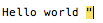
hello world double quotes
Never thought about this, but what if this interferes with my password input.

My plan is to verify that the password I input is send to the server. For this I will use a local webpage. The html code for webpage I used is listed below.

<html>
  <body>
    Password <input type='password'/>
    Plaintext <input type='text'/>
  </body>
</html>

On this webpage I input all ‘special’ characters into both the password and plaintext. After revealing them with the developer tools I noticed some characters weren’t there. The missing characters are listed below.

Character Name
ˆ Caret
Double Quote
Single Quote
˜ Tilde
` Backtick

This is actually a feature not a bug. When you type ^ the input waits for the next character. Is the next character the letter e the input is combined into ê. This is the case for all missing characters in the table above. But in a password box the input is ignored. To get the special character into a password box you’ll need to type the space directly after. The only feedback is that no asterisk is added on a special character.

Back to the different behavior on my mac and my windows machine. I remembered some issue with the keyboard input type on my windows machine. On my mac the input source is U.S. International – PC. After adding the US input source and switching to it the special characters are accepted in the password box. Problem solved!

Keyboard.us

It took me some time to figure this out. Now it sounds obvious, but it is frustrating when you don’t know why your password isn’t accepted.

References

View Hidden Passwords Behind Asterisks in Chrome

Posted in Security | Tagged , | Leave a comment