Testkube journey – testworkflow

We moved our workloads to Kubernetes and now want to run our tests in the cluster. In this series I describe our journey with Testkube. This setup works for us, your milage may vary. You can view all posts in this series by filtering on tag testkube-journey

TestWorkflow

Our app under test uses the keycloak api to provide self-service to developers that want to use oAuth. Your app will most likely use some sort of api too.

What happens in a test is defined with a TestWorkflow. It describes the steps to be performed. Below are the steps we use:

  1. clean the environment by restarting keycloak
  2. wait for keycloak to be up-and-running again using curl to request a page
  3. start the tests in our e2etests container

The yaml is shown below (please read on why this might fail):

apiVersion: testworkflows.testkube.io/v1
kind: TestWorkflow
metadata:
  name: playwright-selfservice-testworkflow
spec:
  steps:
  - name: clean-environment
    container:
      image: registry.user-sb01.k8s.cbsp.nl/docker.io/bitnami/kubectl
    shell: 'kubectl scale deployment/keycloak -n selfservice --replicas=0'

  - name: wait-for-keycloak
    container:
      image: internal-registry-address/docker.io/curlimages/curl
    shell: 'while [ $(curl -ksw "%{http_code}" "http://keycloak.selfservice.svc/realms/master" -o /dev/null) -ne 200 ]; do sleep 5; echo "Waiting for keycloak..."; done'

  - name: playwright-tests
    container:
      image: internal-registry-address/company/e2etests
    shell: 'dotnet test /src --no-build'

Security context

TLDR: add securityContext and workingDir to the TestWorkflow to prevent private registry certificate errors during run.

Running this from the testkube-cli was a bit frustrating. An error showed it could not verify the certificate of the internal-registry-address?

failed to process test workflow: resolving image error: internal-registry-address/docker.io/curlimages/curl: inspecting image: 'internal-registry-address/docker.io/curlimages/curl' at '' registry: fetching 'internal-registry-address/docker.io/curlimages/curl' image from '' registry: reading image "internal-registry-address/docker.io/curlimages/curl": Get "https://internal-registry-address/v2/": tls: failed to verify certificate: x509: certificate signed by unknown authority

Turns out this is documented here: https://docs.testkube.io/articles/test-workflows-high-level-architecture#private-container-registries The issue is that Testkube will check the securityContext and WorkingDir from the metadata that is in the registry. To prevent this call to the registry we must provide the requested information in the TestWorkflow. Below we provide the defaults to all the steps in the TestWorkFlow.

apiVersion: testworkflows.testkube.io/v1
kind: TestWorkflow
metadata:
  name: playwright-selfservice-testworkflow
spec:
  pod:
    securityContext:
      runAsUser: 1001
      runAsGroup: 1001
  container:
    workingDir: /data
  steps:
  - name: clean-environment
    container:
      image: registry.user-sb01.k8s.cbsp.nl/docker.io/bitnami/kubectl
    shell: '.. removed for clarity ...'

  - name: wait-for-keycloak
    container:
      image: internal-registry-address/docker.io/curlimages/curl
    shell: '.. removed for clarity ...'

  - name: playwright-tests
    container:
      image: internal-registry-address/company/e2etests
   shell: '.. removed for clarity ...'

For some steps we needed other rights. This can be overridden in the step by adding the securityContext below the container config. Here is an example for running dotnet test with root access.

apiVersion: testworkflows.testkube.io/v1
kind: TestWorkflow
metadata:
  name: playwright-selfservice-testworkflow
spec:
  pod:
    securityContext:
      runAsUser: 1001
      runAsGroup: 1001
  container:
    workingDir: /data
  steps:
  - name: clean-environment
    container:
      image: registry.user-sb01.k8s.cbsp.nl/docker.io/bitnami/kubectl
    shell: '.. removed for clarity ...'

  - name: wait-for-keycloak
    container:
      image: internal-registry-address/docker.io/curlimages/curl
    shell: '.. removed for clarity ...'

  - name: playwright-tests
    container:
      image: internal-registry-address/company/e2etests
      securityContext:
        runAsUser: 0
        runAsGroup: 0
    shell: '.. removed for clarity ...'

Now the first step starts without the error, but fails because it is not authorised on the kubernetes resources. For this we will add a service account.

Serviceaccount name

TLDR: add a serviceAccount resource and add the serviceAccountName to the TestWorkflow to manage kubernetes resources from your TestWorkflow.

To allow the serviceAccount to scale the keycloak deployment (so that gitops will scale it back up) we must provide the Role and RoleBinding. You can find excellent documentation here: https://kubernetes.io/docs/reference/access-authn-authz/rbac/ We’ve used the Role over the ClusterRole so that the rights are namespaced.

The complete script now looks like this

apiVersion: testworkflows.testkube.io/v1
kind: TestWorkflow
metadata:
  name: playwright-selfservice-testworkflow
spec:
  pod:
    securityContext:
      runAsUser: 1001
      runAsGroup: 1001
    serviceAccountName: deployment-restart-account
  container:
    workingDir: /data
  steps:
  - name: clean-environment
    container:
      image: registry.user-sb01.k8s.cbsp.nl/docker.io/bitnami/kubectl
    shell: 'kubectl scale deployment/keycloak -n selfservice --replicas=0'

  - name: wait-for-keycloak
    container:
      image: internal-registry-address/docker.io/curlimages/curl
    shell: 'while [ $(curl -ksw "%{http_code}" "http://keycloak.selfservice.svc/realms/master" -o /dev/null) -ne 200 ]; do sleep 5; echo "Waiting for keycloak..."; done'

  - name: playwright-tests
    container:
      image: internal-registry-address/company/e2etests
      securityContext:
        runAsUser: 0
        runAsGroup: 0
    shell: 'dotnet test /src --no-build'

Running this with the testkube-cli (see Testkube journey – where we start) will show something like this:

As you can see all tests Passed. But what to do when some tests Failed? For this you can save artifacts. More about that in a future post.
Posted in Tooling | Tagged , , | 1 Comment

Testkube journey – where we start

We moved our workloads to Kubernetes and now want to run our tests in the cluster. In this series I describe our journey with Testkube. This setup works for us, your milage may vary. You can view all posts in this series by filtering on tag testkube-journey

Where we start

Before Kubernetes we deployed workloads on Windows Virtual Machines. Mostly hosted in Internet Information Services and sometimes as a windows service. The language of choice was (and still is) C# with the Microsoft dotnet runtime.

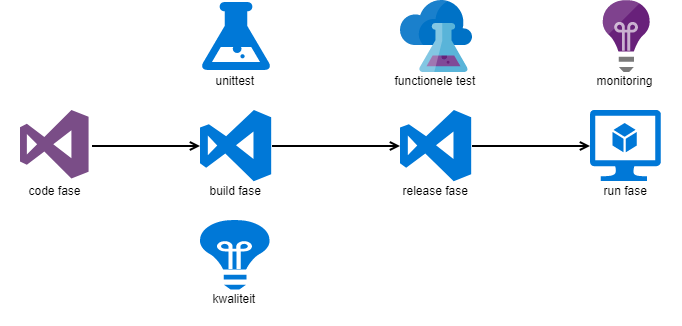
Our sources are hosted in Azure Devops Server (on-prem). Whenever a new version is committed a build compiles the sources and runs the unittests. The completed build artefact triggers the release pipeline to deploy to the VM. After the deployment the integration tests are run. When all tests are green the installation into production is scheduled for that night.

Full tracking of code to production is in Azure Devops Server.

code to production flow

In production we’ve got monitoring. This is added for completeness, but not part of the Testkube journey.

All phases start after the previous completes. Since the complete pipeline is in Azure Devops Server this works great. But with Kubernetes we deploy with gitops and more tools come into play.

Testkube setup

The test orchestration tool of choice is Testkube. It uses Custom Resource Definition (CRD) to store tests. We plan to use gitops for test deployment. Once the tests are in Kubernetes they can be triggered on new versions of the software.

Since we are have no direct internet connection we use the air-gapped installation. This means downloading the chart files from https://github.com/kubeshop/helm-charts/releases and putting them in our local repo. In the values.yaml we needed to specify the global imageRegistry to use our internal image registry and the installation completed without issues.

global:
  imageRegistry: "internal-registry-address"

The chart installs:

  • mongodb, to store logs
  • nats, supporting connectivity component
  • minio, to store artifacts (and logs)
  • testkube-logs, to collect logs and artifacts
  • testkube-api, to interact with Testkube
  • testkube-operator, to create kubernetes resources for Testkube

To test the installation we deployed the testkube-cli. The output signals success.

Next step is to create our first TestWorkflow. This will be a future post.

Posted in Tooling | Tagged , , | 2 Comments

SeqCli from jobs in Kubernetes

We use seq to view our logs. The hosting is done in Kubernetes. For management we tried jobs with the seqcli container. This works great if you mount the SeqCli.json config file.

First we tried the environment variables as described in the documentation. (https://docs.datalust.co/docs/command-line-client) We couldn’t get it to work. Then we found the SeqCli.json config file – now we have all rainbows and unicorns.

The job below sets the license for seq. When we get the new license, we create a new job to apply it.

apiVersion: batch/v1
kind: Job
metadata:
  name: licensejob2024
spec:
  template:
    spec:
      containers:
      - name: seqcli
        image: datalust/seqcli:latest
        args: 
        - "license"
        - "apply"
        - "--certificate=/mnt/license/seq_license_2024.txt"
        volumeMounts:
          - name: seqcli-json
            mountPath: /root/SeqCli.json
            subPath: SeqCli.json
          - name: license
            mountPath: /mnt/license
      volumes:
        - name: seqcli-json
          secret:
            secretName: seqcli
        - name: license
          configMap:
            name: seqlicense
      restartPolicy: Never
  backoffLimit: 4

The SeqCli.json is in a secret as it contains the api key. The data looks like this.

{
    "connection": {
      "serverUrl": "http://seq.logging.svc.cluster.local",
      "apiKey": "Secret-Api-Key"
    },
    "output": {
      "disableColor": false,
      "forceColor": false
    },
    "profiles": {}
}

🦄 🌈

Posted in Tooling | Tagged , | Leave a comment

Log collection with fluent-bit and ELK

ELK = Elasticsearch, Logstash and Kibana

We are moving to Kubernetes with our applications. So I’ve installed Rancher Desktop om my laptop to get some hands-on experience. I’ll post my findings here.

When pods startup we can get the logs from the command line

kubectl logs <podname> -f

When pods go away we cannot get the logs from that pod anymore. This is by design and a solution is to collect the logs. For this I’m using fluent-bit to get the logs and ELK to store and view the logs.

Elasticsearch

First I’ll deploy Elasticsearch – I had to tune down the resources since my laptop has limited memory. Deployment and Service yaml below:

apiVersion: apps/v1
kind: Deployment
metadata:
  labels:
    component: elasticseach-logging
  name: elasticsearch-logging
spec:
  selector:
    matchLabels:
      component: elasticsearch-logging
  template:
    metadata:
      labels:
        component: elasticsearch-logging
    spec:
      containers:
      - name: elasticsearch
        image: docker.elastic.co/elasticsearch/elasticsearch:7.17.16
        env:
        - name: discovery.type
          value: single-node
        ports:
        - containerPort: 9200
          name: http
          protocol: TCP
        resources:
          limits:
            cpu: 500m
            memory: 1Gi
          requests:
            cpu: 500m
            memory: 1Gi
---
apiVersion: v1
kind: Service
metadata:
  name: elasticsearch-logging
spec:
  type: NodePort
  selector:
    component: elasticsearch-logging
  ports:
  - port: 9200
    targetPort: 9200

After deployment the container will need some time to start. Just let it do it’s thing.

Fluent-bit

Fluent-bit is the part that collects the logs from disk and sends them to some storage solution. We’ll let it send the logs to Elasticsearch. For this I use the helm chart from https://github.com/fluent/helm-charts. The default values.yaml needs to be edited to send the logs to the correct address. Changes shown. below.

  outputs: |
    [OUTPUT]
        Name es
        Match kube.*
        Host elasticsearch-logging.logging.svc.cluster.local
        Logstash_Format On
        Retry_Limit 5

Now the logs are send to Elasticsearch it is time to view them.

Kibana

The visualisation tool from elastic.co is Kibana. Again I’ll deploy this linking to Elasticsearch. Deployment, Service and Ingress yaml below:

apiVersion: apps/v1
kind: Deployment
metadata:
  labels:
    component: kibana
  name: kibana
spec:
  selector:
    matchLabels:
      component: kibana
  template:
    metadata:
      labels:
        component: kibana
    spec:
      containers:
      - name: kibana
        image: docker.elastic.co/kibana/kibana:7.17.16
        env:
        - name: ELASTICSEARCH_HOSTS
          value: '["http://elasticsearch-logging:9200"]'
        ports:
        - containerPort: 5601
          name: http
          protocol: TCP
---
apiVersion: v1
kind: Service
metadata:
  name: kibana
spec:
  type: NodePort
  selector:
    component: kibana
  ports:
  - port: 5601
    targetPort: 5601
---
apiVersion: networking.k8s.io/v1
kind: Ingress
metadata:
  name: kibana
spec:
  ingressClassName: nginx
  rules:
    - host: kibana.localdev.me
      http:
        paths:
          - path: /
            pathType: Prefix
            backend:
              service:
                name: kibana
                port:
                  number: 5601

I’m using an ingress to get to the Kibana UI. The domain localdev.me points to 127.0.0.1 and is free to use. Works great.

Viewing the logs

On first opening the Kibana UI it notifies me about creating an index pattern. Just follow along and create the index with logstash and @timestamp.

Now I can filter the logs on the namespace containing my demo applications (Nginx website and Rstudio plumber webapi) and view the logs.

Logs are saved to Elasticsearch and can be viewed after the pod is removed.

Posted in Tooling | Tagged | Leave a comment

Enable metrics server on Rancher Desktop

We are moving to Kubernetes with our applications. So I’ve installed Rancher Desktop om my laptop to get some hands-on experience. I’ll post my findings here.

Metrics server and Metrics API

With the Metrics API you can get CPU and Memory usage from your nodes or pods. By default this is not working in Rancher Desktop.

kubectl top node
error: Metrics API not available
kubectl top pod -A --sort-by memory
error: Metrics API not available

The documentation shows you’ll need a Metrics Server to get this working. Also a location with deployment information is provided. But there is a faster method for Rancher Desktop.

Extensions

Rancher Desktop provides extensions from a “marketplace”. Look for tachometer and install it.

Now the Metrics Server is installed and the Metrics API will work. You’ll also get an interactive view of the pods resource usage in the Rancher Desktop Tachometer tab.

References

Kubernetes documentation https://kubernetes.io/docs/tasks/debug/debug-cluster/resource-metrics-pipeline
Tachometer on docker hub https://hub.docker.com/extensions/julianb90/tachometer

Posted in Tooling | Tagged | Leave a comment
