SQL Server Data Tools in Visual Studio 2013

Visual Studio 2013 has Sql Server Data Tools built in. (Pro, Premium and Ultimate) We use it to compare and sync databases.

The first time I started the data compare it did not work. When comparing the data between databases no tables could be selected.
data.comparison.missing.tables
The MSDN article about the SQL Server Data Compare explains why:

Tables and views must meet two criteria to appear in the listing. First, the schemas of the objects must match between the source and target databases. Second, only tables and views that have a primary key, a unique key, a unique index, or a unique constraint appear in the list. If no tables or views meet both criteria, the list will be empty.

Since my database was created using the Sql Server Export Data feature no indexes or keys were created. Makes sense as it only copies the data (hence the name)

Schema compare

To correct missing keys and indexes or other object differences, do a schema compare. After the compare, click Update Target to create the missing indexes and keys.
schema.comparison.missing.indexes
To save the changes for deployment use Generate Script.

Data compare

Data compare will now show data differences for the tables. There are none, because no changes were made after the Sql Server Export Data had run.
data.comparison.identical.records
When there are differences: as with schema compare you can Update Target for immediate sync or use Generate Script to save the changes for deployment.

Final thoughts

The data tools are a good option when you can connect to both environments with Visual Studio. You can create scripts for the changes and use that for your deployments.
For the initial setup with base data Microsoft has the bacpac files. You can create them with the commandline tool sqlpackage.exe. (download)

Posted in Tooling | Tagged , , , , , | 4 Comments

Tentacle error after powershell upgrade

octopusdeployAs of version 4 NServiceBus has powershell commandlets to install the infrastructure items like MSMQ, MSDTC and RavenDB. This replaces the /installinfrastructure option.

For this to work I installed powershell v3 on my Windows 2008 R2 machine which comes with powershell v2. This can be done by downloading and installing Windows Management Framework 3.0 found on Microsoft TechNet.

But now my deployments fail on Powershell scripts that used to work. The error message:

Error when attempting to execute powershell.exe: The system cannot find the file specified

Is the tentacle looking in the wrong directory?

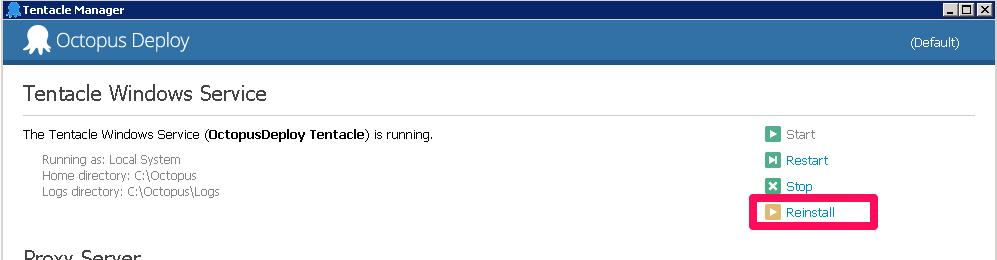
The solution is to reinstall the tentacle service.
tentacle.reinstall
After that everything works as before. The reinstall changes nothing in your configuration but just fixes things that are messed up, like a moved powershell executable. 😉

Posted in Tooling | Tagged , | Leave a comment

Week roundup

Here are the best articles I’ve read/seen last week:

Image courtesy of kanate / FreeDigitalPhotos.net

Image courtesy of kanate / FreeDigitalPhotos.net

What are your best reads this week? Leave them in the comments below.

Posted in Uncategorized | Tagged , , | Leave a comment

Bundling fails in release mode

Learned something about bundling the hard way. Deployed a website and now the styling is all wrong? Getting 404 on your bundles? Only getting this on Release “builds”? Maybe you made the same error as we did.

In debug mode the bundles are rendered as individual script / link tags, but in release mode this is optimized in one virtual link. Make sure the bundle is not pointing to an existing file and is linking to a file. Our solution used links without extension and that threw IIS off.

bundles.Add(
/* wrong: new ScriptBundle("~/bundles/kendo") */
/*                       missing extension ^  */
   new ScriptBundle("~/bundles/kendo.js")
      .Include("~/Scripts/kendo/kendo.web.*", 
               "~/Scripts/kendo/kendo.aspnetmvc.*")
);

References

Posted in Development | Tagged , | Leave a comment

Change remote desktop public port in Windows Azure

When you cannot connect to your Windows Azure Virtual Machine with remote desktop, maybe you’re being blocked. Most companies don’t allow communication over all ports. This limitation can be overcome by changing the public port Windows Azure uses for Remote Desktop.

Since your virtual machine is behind a loadbalancer, the communication to a specific machine uses port forwarding. Windows Azure ‘randomly’ assigns a unique port for your virtual machine. This unique port is forwarded to 3389 of your virtual machine. Now you can connect with the specific machine through the loadbalancer as it can be identified by the unique public port.

Changing to port mapping can be done in the Windows Azure portal.

  • Select the Virtual Machine
  • Go to the endpoints tab
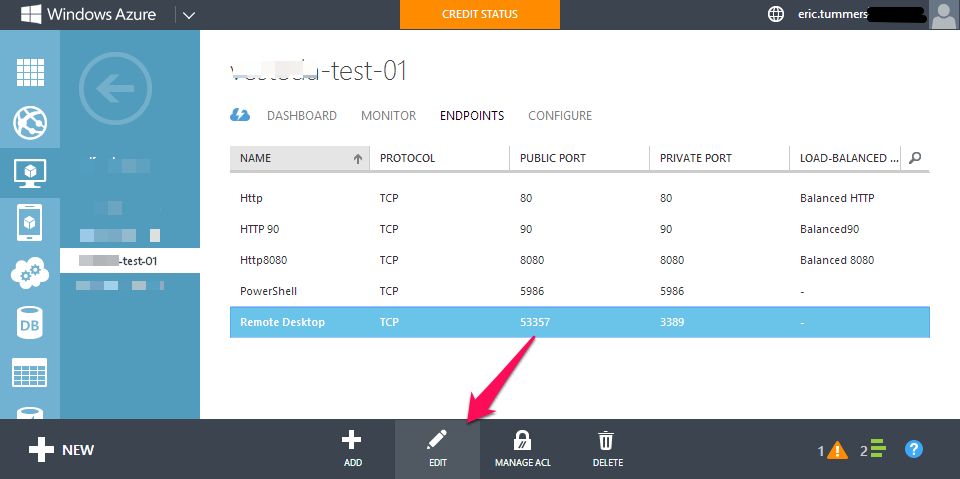
  • Select the Remote Desktop port
    change.rdp.port
  • Click Edit
  • Assign a public port your company allows (3389?)
    change.rdp.port.2
  • Click checkmark
  • Wait for the provisioning to finish

Now you can connect to the virtual machine by going to the dashboard tab, clicking connect and opening the downloaded rdp file. Your new assigned public port should be used, which is a port allowed by your company.

Posted in Security | Tagged , , | Leave a comment