Disable LoadUserProfile on IIS Applicationpool

We’re using IIS Metabase (6.0) to administer IIS from our application. For IIS 7 and above we use the IIS Metabase and IIS 6 configuration compatibility Windows feature.

After introducing the creation of an application pool per web application we noticed the numerous user profiles. Turns out there is an option to load the user profile for the application pool identity. The option is introduced to mimic IIS 6 behavior. It therefor is not available in IIS Metabase.

To change the option we need to use the Microsoft.Web.Administration classes. They manage IIS 7 and higher. By putting this in a try-catch we stay compatible with IIS 6.

try {
    var iisManager = new Microsoft.Web.Administration.ServerManager();
    iisManager.ApplicationPools[nameOfApplicationPool]
         .ProcessModel.LoadUserProfile = false;
    iisManager.CommitChanges();
} catch (Exception ex) {
    System.Diagnostics.Trace.TraceWarning(
        "LoadUserProfile not set: {0}", 
        ex.Message);
}

References

Posted in Development | Tagged , , | Leave a comment

Firewall rule to allow only a certain ip address

For a bug reproduction I created two hyper-v machines. Communication between the machine should be blocked, but communication with my main machine should be allowed. This can be done in the Windows Firewall.

First I queried for the ip address of my main machine. The ping command with -4 parameter will return the IPv4 address, somehow only that address worked in the firewall rule.
Then I created the firewall rule on both hyper-v machines and used the IPv4 address from the first step.
As an extra step I tested that the port was open or blocked on all machines.

The powershell commands are listed below.

# get the IPv4 address
ping [machine] -4

# create new firewall rule
New-NetFirewallRule -Direction Inbound `
-Action Allow `
-LocalPort 8031 `
-Protocol TCP `
-RemoteAddress [IP_FROM_PING] `
-DisplayName "Allow 8031 from Master"

# test port 8031 is open, will throw exception if closed
(New-Object System.Net.Sockets.TcpClient).Connect([VM], 8031)

To enable logging of dropped packages open the Windows Firewall. Open the Properties. Open the Public Profile tab. On the Logging section click Customize. Change the Log dropped packagets to Yes.

firewall_log_dropped_packets

On the Monitoring node (tab Public Profile) the logfile is shown as a hyperlink for easy opening.

Reproduction of the bug made me solve it within 10 minutes. The solution could be tested in the repro environment and proved it was working.

Posted in Tooling | Tagged , | Leave a comment

Week roundup

Last week recap and links:
Image courtesy of kanate / FreeDigitalPhotos.net

  • Octopus deploy high availability, post about the future features of octopus deploy. Some will be paid only. I’m still loving it.
  • Duet makes from your ipad a second screen for your computer. Now supports Windows.
  • Next week I’ll be at Techdays, lots of sessions on subjects from Build

Image courtesy of kanate / FreeDigitalPhotos.net

What are your best reads this week? Leave them in the comments below.

Posted in Uncategorized | Tagged , , | Leave a comment

Azure billing summary explained

Since I backup my nas to Azure my usage has gone up. The azure portal shows the credit status and offers a more detailed summary. But what do the numbers mean?

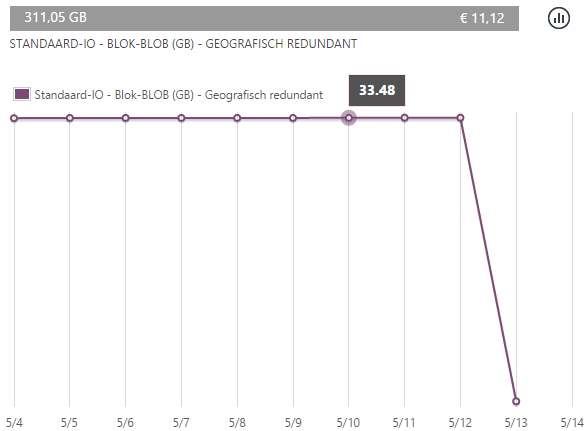
I’ve made a screenshot of my storage usage. A small bug on the portal leaves the details in dutch when I change the language to english, but I’m sure you know what information is shown.

azure_storage_usage

First the grey bar on top of the screenshot. This contains the current used credits / the sum of all days of the current period (monthly). On the left the total is presented in Gigabyte and on the right the total in credits (311.05 * €0.0358 = €11,12)

The nodes in the graph show the average usage per day. Days are on the horizontal ax. I’m storing around 1 Terabyte, which averages to ±1004 / 30 = 33.48 Gigabyte per day in a period of 30 days.

Hope this clears the clouds around azure billing.

Posted in Tooling | Tagged | Leave a comment

Remote powershell or how I manage my local Hyper-V machines

powershellFor testing I’ve created some Hyper-V machines on my Windows 8.1 laptop. The burden of deploying software to these virtual machine has been resolved by powershell scripts on the virtual machines. The script is just a simple stop-service, copy new assemblies, start service.

But this still forces me to remote desktop/connect to the virtual machine and start the script from there. An extra icon on the taskbar, an extra ALT-TAB, it started to bother me. That is when I get in the zone and make it work.

Virtual machine

To enable remote powershell the winrm service must be runnning. Also the firewall must allow access over port 5985. Both can be done with powershell.

Get-Service winrm | Start-Service
Enable-PSRemoting -Force

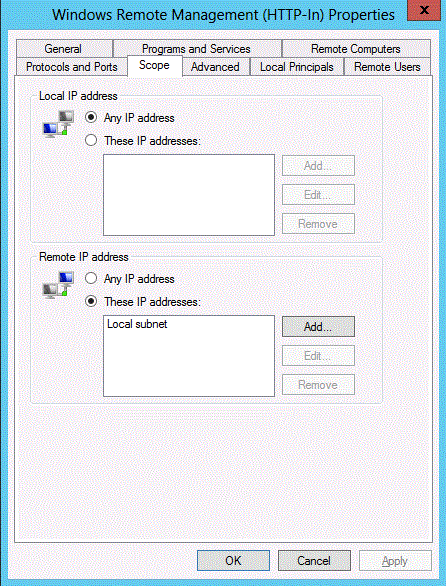
The firewall rule created allows access from the local subnet. Enough for my (local) Hyper-V machines. You can always remove the subnet limitation and allow all IP addresses. Remember this is a test machine.
winrm_firewall

Host machine

On my development/host machine the winrm service must be running. To allow access to the virtual machine the connection must be https (requires certificate) or the machine must be added to the TrustedHosts. I go with the latter option, since it’s the quickest solution. Again this can be done with powershell.

Get-Service winrm | Start-Service
winrm s winrm/config/client '@{TrustedHosts="remote_computer"}'

Now I can open a session to the virtual machine.

Enter-PSSession -ComputerName remote_computer -Credentials $prompt

No more remote desktop when deploying and testing my development work on hyper-v machines.

References

Enable and Use Remote Commands in Windows PowerShell, microsoft technet magazine tip

Posted in Tooling | Tagged , | Leave a comment