WPF localization

To repro a bug I’ve created a simple WPF application that displays two labels bound to the same DateTime object. The bottom one is converted to a string using a IValueConverter. Both should be formatted the same but aren’t.
wpf_localization_1

By adding some trace lines to the Convert method I’ve discovered that the CultureInfo (en-US) parameter is different from the CurrentThread.CurrentCulture (nl-NL). I’ve configured my English Windows 8.1 with Dutch formatting for datetime.

On stackoverflow someone pointed me to IFormattable and the ToString overload that would accept the culture. My Convert method now looks like below.

public object Convert(object value, Type targetType, object parameter, System.Globalization.CultureInfo culture){
    System.Diagnostics.Trace.TraceInformation( "Convert Culture: {0}", culture.ToString());
    System.Diagnostics.Trace.TraceInformation( "Thread  Culture: {0}", System.Threading.Thread.CurrentThread.CurrentCulture.ToString());
    System.Diagnostics.Trace.TraceInformation( "ThreadUICulture: {0}", System.Threading.Thread.CurrentThread.CurrentUICulture.ToString());
    var formattable = value as IFormattable;
    return formattable.ToString( null, culture);
}

Now the formatting looks alike, but not what I expected. The formatting should have been in Dutch (dd-MM-yyyy).
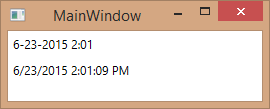
wpf_localization_2

By setting the Language property for the top framework element, the CultureInfo passed to the Convert method is changed. This has to be repeated on every Window. A very usefull tip from Rick shows how to do this in the OnStartup all at once.

protected override void OnStartup(StartupEventArgs e){
    base.OnStartup(e);
    FrameworkElement.LanguageProperty.OverrideMetadata( typeof( FrameworkElement),
        new FrameworkPropertyMetadata(XmlLanguage .GetLanguage(CultureInfo.CurrentCulture.IetfLanguageTag)));
}
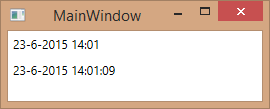
wpf_localization_3

Now the dates are printed the way you specify in the Control Panel > Region > Format. Remember to restart the Application (or Visual Studio when debugging) after you’ve changed the setting.

References

Stackoverflow answer to use IFormattable
WPF Bindings and CurrentCulture Formatting – Set Language App global


Posted in Development | Tagged , , | Leave a comment

Loadtest with Azure VM

For an upcoming release we decided to do a loadtest on our Azure test environment. Until now we used a set of local machines for this. The setup uses 6 machines that host our product, which consists of a number of WCF services and a website. We must produce the load from “within” Azure or else it would be blocked as being a DDOS. So we provisioned an additional VM with Visual Studio 2013 and started the test.

Result

We soon discovered that it had to be run in 64 bit mode to use the 28 Gb (A6!) memory we gave the VM. This is done in the testsettings file under hosts.
loadtest_64bit
Running in 32 bit resulted in an out-of-memory exception since it can only use 3 Gb.

In the Azure portal we would follow the metrics of the VM’s hosting our product. This information is lagging behind and sometimes we want to know what is happening in real time. Using remote powershell we call the Get-Process commandlet. It provides just enough intel.

After the first test runs we experienced bugs and hickups. Some fixes are applied and another loadtest is run. This had been unnoticed on our local machines. Loadtesting in Azure is already a huge success.

Next

If we had a Visual Studio Online account we could have used their loadtest. Maybe somewhere in the future, one-step at a time.

After two days of testing this setup my Azure subscription freaked out and notified my that I possibly had insufficient funds for the rest of the month. We all laughed and shutdown the machines for the weekend. That is cloud computing!

Posted in Test | Tagged , | Leave a comment

Week roundup

Last week recap and links:
Image courtesy of kanate / FreeDigitalPhotos.net

Image courtesy of kanate / FreeDigitalPhotos.net

What are your best reads this week? Leave them in the comments below.

Posted in Uncategorized | Tagged , , | Leave a comment

Powershell optimization

After rewriting my PowerShell test environment automation script with functions I optimized some parts to improve memory usage, automate IIS Webfarm configuration and batch starting/stopping all machines is a Azure Cloud Service.

Download

For installation of software the script downloads the MSI from Azure storage. The download is done with Invoke-WebRequest which generates a lot of output. I’ve seen over 6Gb of memory usage to hold this output in a job even with Receive-Job being called every 15 seconds.

Now I’m using the .NET webclient and memory usage is back to normal. Since the installation should be a black box I only want to know when it fails and not how much bits are downloaded.

$client = New-Object net.webclient
$client.Downloadfile($file, $msi)

Webfarm

During creation of the VM I run a custom script to install IIS. This however does not configure IIS for a webfarm setup. Most important is the machinekey setting for encryption/decryption of the viewstate.

# add masterkey to machine.config for webfarm
$configFile = "$ENV:windir\Microsoft.NET\Framework64\v4.0.30319\Config\machine.config"
$xml=New-Object XML
$xml.Load($configFile)
$machinekey = $xml.CreateElement("machineKey")
$machinekey.SetAttribute("decryption", "AES")
$machinekey.SetAttribute("decryptionKey", "DECRYPTION_KEY_HERE")
$machinekey.SetAttribute("validation", "SHA1")
$machinekey.SetAttribute("validationKey", "VALIDATION_KEY_HERE")
$machinekey.SetAttribute("compatibilityMode", "Framework45")
$xml.configuration.'system.web'.AppendChild($machinekey) | Write-Debug
$xml.Save($configFile)

To generate the keys use one of the references from this post: Setting up a machine key.

Batch start/stop

After creating a lot of machines for our test we sometimes want to keep the VM’s. When the machines are running they cost money, but once stopped only the storage is billed. Stopping all VM’s in a Azure Cloud Service can be done by using a wildcard. MSDN documentation states this is not supported but it works.

# stop all VM in a Cloud service
Stop-AzureVM -ServiceName $service -Name * -Force
# start all VM in a Cloud service
Start-AzureVM -ServiceName $service -Name *

You’ll need at least Windows Azure PowerShell 0.6.19. Best is to install the latest version from here.

Posted in Development | Tagged , , | Leave a comment

Powershell Functions in my Azure setup script

In my Automate test environment with azure virtual machines post I’ve written about my Azure setup script. To improve readability and making the creation of a new machine easier I decided to rewrite some parts to functions.

The customscript extension had me puzzled some time, but the logs got me sorted out. Make sure to host your file in Azure Storage or some other “direct access” location; dropbox-link shares contain illegal characters (the questionmark).

$subnet= "subnet-1"
$redundancy = "Standard_LRS"
$size  = "Small" #"ExtraSmall" "Small" "Medium" "Large" "ExtraLarge"
$location = "West Europe"
$service = "YOUR_SERVICE_HERE"
$un = "Someone"
$pwd = "*****"
$configurewebserver = "http://url_to_your_powershell/script.ps1"
$configurewebserverrun = "script.ps1"
# Create the storage account if needed, remove old (running) instance and 
# name the new VHD
function Prepare {
    param([string] $storage, [string] $machine)
    New-AzureStorageAccount -StorageAccountName $storage -Location $location -Type $redundancy -ErrorAction Ignore
    Get-AzureVm -ServiceName $service -Name $machine -WarningAction Ignore | Remove-AzureVM -DeleteVHD
    $context = (New-AzureStorageContext -StorageAccountName $storage -Anonymous).BlobEndPoint
    Write-Output "$context/vhds/$machine$((Get-Date).Ticks).vhd"
}
# Create a VM to host the web role on loadbalanced ports (80 and 443) and 
# install some IIS features using the customscript extension
function CreateWebVM {
    param([string] $storage, [string] $machine)
    $webLocation = Prepare -storage $storage -machine $machine
    Write-Host "Creating $machine"
    $vmWeb = New-AzureVMConfig -Name $machine -InstanceSize $size -ImageName $image.ImageName -MediaLocation $webLocation |
      Add-AzureProvisioningConfig -Windows -AdminUsername $un -Password $pwd |
      Add-AzureEndpoint -Protocol tcp -LocalPort 80 -PublicPort 80 -Name 'web' -LBSetName 'web' -DefaultProbe |
      Add-AzureEndpoint -Protocol tcp -LocalPort 443 -PublicPort 443 -Name 'https' -LBSetName 'https' -DefaultProbe | 
      Set-AzureSubnet $subnet |
      Set-AzureVMCustomScriptExtension -FileUri $configurewebserver -Run $configurewebserverrun |
      New-AzureVm -ServiceName $service
}

After the creation of the VM some custom software had to be installed. For this I’ve used a download with Invoke-WebRequest. The file can be hosted on dropbox now since I don’t check for illegal characters. Some (very basic) retry logic is in place to make sure the file exists before installation can start.

$download = "https://download_msi_from/dropbox/file.msi?dl=1"
# Install custom software in a remote session
function InstallSoftwareForWeb {    
    param([System.Management.Automation.Runspaces.PSSession[]] $sessions)
    Invoke-Command -Session $sessions -ScriptBlock {
        param([String]$file)
        $msi = "c:\custominstall.msi"
        $completed = Test-Path $msi
        while($completed -ne $true) {
            Invoke-WebRequest $file -OutFile $msi | Write-Debug
            $completed = Test-Path $msi
            if ($completed -ne $true) { Write-Host "Retry downloading MSI" }
        }
        Unblock-File $msi
        Start-Process -FilePath $msi -ArgumentList /qn, /L!V, c:\\install.txt -Wait
    } -ArgumentList $download -AsJob
}

After all functions are defined the script calls them in the correct order. This way adding an extra machine looks like this.

$webstorage = "MyWebStorageInAzure"
$webMachine3 = "WebMachine3"
CreateWebVM $webstorage $webMachine3
$sessionToWebMachine3 = StartRemoteSession $webMachine3
ConfigureFirewall $sessionToWebMachine3
InstallSoftwareForWeb $sessionToWebMachine3
GenerateCertificates $sessionToWebMachine3
RegisterCertificates $sessionToWebMachine3
RegisterHttpsCertificate $sessionToWebMachine3
RegisterNode $sessionAdmin $webMachine3

Everyone with a technical background and a basic understanding of English should be able to guess what would happen if we run this.

Posted in Development | Tagged | 1 Comment
