The diskspace on my MacBook was running out. I decided that my HP would had the give up his bigger SSD in favor of the MacBook. But now I was swapping disks from different size, different formatting and different OS. In Windows I booted from VHD on MacOSX I just used the out-of-the-box way. Here’s how I managed to get it all done within an afternoon.
 Do this at your own risk! I have a copy of my HP on an extra external HDD and a timemachine backup of my MacBook just in case.
Move HP to spinning disk
I booted the HP from the Windows 8.1 bootable installation usb stick. The spinning disk in the external USB3 case was attached during boot. The internal disk got drive letter C (as expected) and the spinning disk drive letter E.
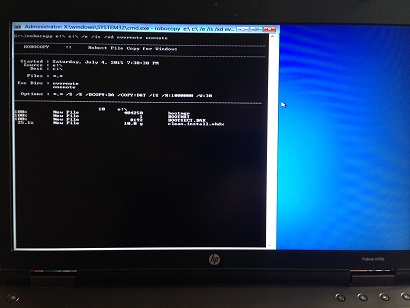
Using robocopy I copied everything from my internal disk to the (clean formatted) spinning disk. This took about 20 minutes for 109 Gb. After robocopy completed the task I swapped the disks, putting the SSD into the USB3 case and the spinning disk in the HP.
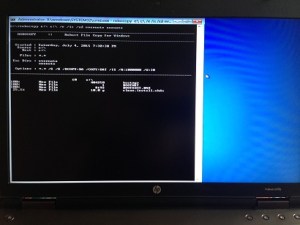
Again I booted HP from the Windows 8.1 usb stick. This time I made the VHDX bootable again by using the bcdboot command explained in step 4 of Boot to VHD on Microsoft technet library.
Now I have a HP booting to a VHD on a spinning disk. Very slow, but it works. I can proceed to the next step without worrying about not being able to do my work on monday.
Move MacBook to bigger SSD
With the bigger SSD from the HP in the USB3 case I booted the MacBook with the ALT (Option) key pressed. In the menu I selected the recovery boot option and started the Disk Utility. I tried to do the restore while being booted into MacOSX, but that is not supported.
In the Disk Utility I repartitioned the bigger SSD with one partition and set the GUID Partition Scheme to make it bootable. After the partition was created I started the restore from the internal SSD to the bigger SSD in the USB3 case. Unfortunately my MacBook (Early 2009) only has USB2 ports and the restore took about 2 hours for 112 Gb. After the restore completed I left everything in its place.
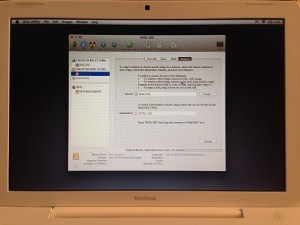
Again I booted with the ALT key pressed. Now I started the bigger SSD in the USB3 case to make sure everything was working. I was pleased to see all is well. Then I swapped the SSD with the bigger SSD.
Now I have a MacBook booting from a bigger SSD with all my stuff on it.
Move HP to SSD
The final step was to put the SSD in the HP and the spinning disk back into the USB3 case. Again I booted from the Windows 8.1 bootable installation usb disk with the USB3 case attached during boot, the SSD was already inside the HP.
First I had to format the SSD and make it bootable. This was handled by diskpart from step 3 of Boot to VHD on Microsoft technet library. Then another robocopy job to get the files from the spinning disk onto the SSD. Again this took about 20 minutes, since my HP has USB3 ports.
With all files in place I only had to make the VHD bootable and I booted the HP from the Windows 8.1 usb stick again. Like before with the spinning disk I followed step 4 of Boot to VHD on Microsoft technet library. Once booted into Windows 8.1 I cleaned up the boot item list with bcdedit and another successful weekend project was completed.
Caveats
- Robocopy tripped over my encrypted files. I excluded the encrypted directories with /XD. After that I manually copied the directories from within Windows.
- Robocopy also tripped over my onedrive files. I didn’t even realize I had those, but apparently Windows 8.1 cannot live without this. The files cannot be accessed by the system? I also excluded the onedrive with /XD, but didn’t manually copy them.
- When I made the VHD bootable with the USB3 case attached everything failed. I learned to only have the Windows 8.1 bootable installation usb stick attached during this phase.
Details
SSD – Cursial M4 120 Gb
Bigger SSD – Intel 330 180 Gb
Spinning disk – 320 Gb 7200 rpm
Windows 8.1 bootable installation usb stick – Imation usb2 8Gb
USB3 case – Icy Box
References
Boot to VHD on Microsoft technet library.
Restore on apple discussion.

 Part of our build process is to save the PDB files to a file share. This way we can debug the assemblies when needed. Without the correct PDB this is not possible, even with the sources available.





 .NET Development by Eric