Data Access to MsAccess database

msaccess
We’re developing an adapter to connect to a legacy application. The connection is a MsAccess database that we create as an export. The legacy application will import the database.

My initial thought was to use Entity Framework to write to the MsAccess database. It turns out that OleDB is not supported by EF. Since the solution is temporary we decided to create our own Data Access Layer.

We only export the data and create a new database for every export. This means insert-only and no other operations. Most of the work is writing the OR-mapping, but that is a one time exercise. During testing we discovered that working in batch (array of records) improved the throughput from 2 minutes to 2 seconds for 1500 records. A simplified implementation of the Save method is below

public void Save(object[] records) {
    var builder = new OleDbConnectionStringBuilder {
        // provider present from Windows 2000 and up
        Provider = "Microsoft.ACE.OLEDB.12.0",
        DataSource = @"path_to_database_file"
    };
    using(var connection = new OleDbConnection(builder.ConnectionString)) {
        connection.Open();
        foreach (var record in records) {
            using (var command = connection.CreateCommand()) {
                command.CommandText = "INSERT INTO Table1 (Field1) VALUES (@Field1)";
                command.Parameters.Add("Field1", OleDbType.Integer).Value = 1;
                command.ExecuteNonQuery();
            }
        }
        connection.Close();
    }
}

As Dick Moffat stated on SDC last year: MsAccess is here to stay.

Posted in Uncategorized | 1 Comment

Week roundup

Last week recap and links:
Image courtesy of kanate / FreeDigitalPhotos.net

Image courtesy of kanate / FreeDigitalPhotos.net

What are your best reads this week? Leave them in the comments below.

Posted in Uncategorized | Tagged | Leave a comment

Transactional File System

Warning!

Microsoft strongly recommends developers investigate utilizing the discussed alternatives (or in some cases, investigate other alternatives) rather than adopting an API platform which may not be available in future versions of Windows.
– MSDN

What?

Microsoft introduced Transactional NTFS (TxF) with Windows Vista. This enabled developers to make a number of file system operations and they would need to complete all or everything is rolled back (like in database transactions)

It uses unmanaged C++ operations from the Kernel32.dll. Also the Distributed Transaction Coordinator is used for managing the transaction.

Why?

Ever wanted to process a set of files as a whole? What if the last of 100 files is not moved / deleted / written? You would need to do a corrective action. What if the corrective action fails?

How?

I’m investigating the TxF for reading and moving a set of files. The files need to be parsed, loaded into a database and archived as a set. When a file fails every file needs to be left in the input folder. This can be achieved by starting a transactionscope and completing it when everything succeeds.

using (var scope = new TransactionScope()) {
    foreach (var file in files) {
        var source = Path.Combine(directory, file);
        using(var stream = TransactedFile.Open(source, 
                    FileMode.Open, FileAccess.Read, FileShare.None))
        {
            // read file and put in database
        }
        var destination = Path.Combine(archive, file);
        TransactedFile.Move(source, destination);
    }
    scope.Complete();
}

Again: Microsoft is planning to deprecate the TxF API’s. Maybe if we all start using it Microsoft will hang on to it.

References

Transaction File System wrappers on github
Alternatives to using Transactional NTFS on MSDN

Posted in Uncategorized | Tagged , , , | Leave a comment

iCloud backup settings

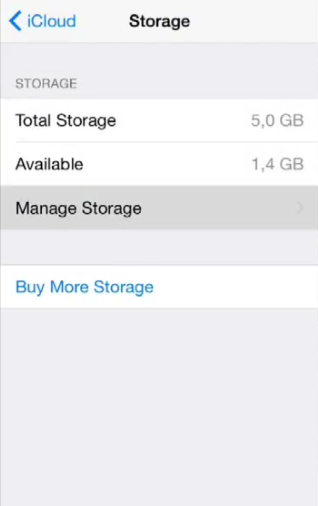
We have a number of iDevices in our household. All devices are linked to the same iCloud account for sharing apps, music and photo’s. The free 5 Gb storage is slowly running out. I could pay for more space but found that changing my backup settings bought me some time before this is really necessary.

Remember the rule of three for backups? iCloud provides the off-site backup. Make sure to backup what you care about. (and not everything when space is limited)

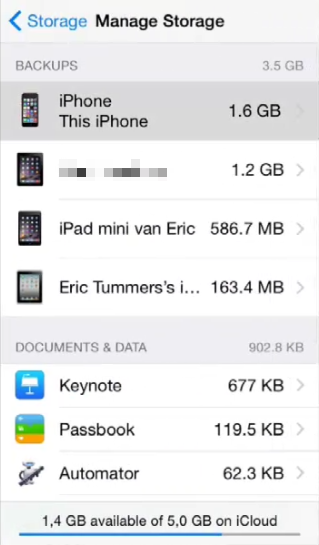
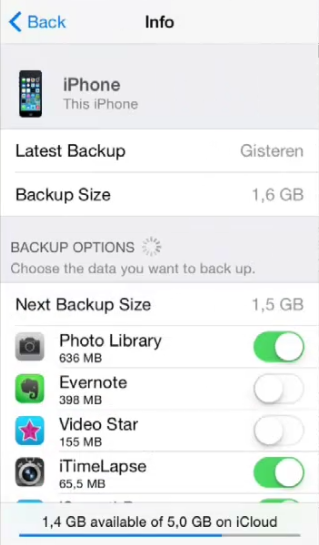
Open the settings app on your iDevice, goto iCloud > Storage > Manage Storage > Backups (this device)
icloudstoragemanage storagethis iphonebackup settings

Switch off all apps that you don’t want to backup to iCloud. I switched off Evernote (already on their servers), Video Star (exported to camera role) and some more data hogging apps. This saved me the money for extra storage.

Posted in Uncategorized | Tagged , , | Leave a comment

Week roundup

Last week recap and links:

Image courtesy of kanate / FreeDigitalPhotos.net

Image courtesy of kanate / FreeDigitalPhotos.net

What are your best reads this week? Leave them in the comments below.

Posted in Uncategorized | Tagged , , | Leave a comment