
In this post you’ll add Sql Server from Azure to a dotnet core mvc app. We presume you’ve already created the Sql Server in Azure. If not follow my post azure sql server for centralised database.
User Provided Service
A user provided service is a way to connect non-marketplace services to your cloud foundry app. The service will show up in the services tab and the connectionstring (or anything else you need) is added to the configuration.
We use the cli to add Sql Server as a user provided service and then hook it up to the core app. The connectionstring is provided by Azure on the portal. The line below is very long!
cf cups mySqlServerService -p '{"connectionstring": "Server=tcp:cfnorthwind.database.windows.net,1433;Initial Catalog=Northwind;Persist Security Info=False;User ID=eric@cfnorthwind;Password=4Pjby8$wTk;MultipleActiveResultSets=False;Encrypt=True;TrustServerCertificate=False;Connection Timeout=30;"}'
cf bind-service core mySqlServerService
In stratos the service is visible now

Code changes
We’re going to edit the dotnet core app.
First add some nugets:
dotnet add package Steeltoe.CloudFoundry.ConnectorCore
dotnet add package Steeltoe.Extensions.Configuration.CloudFoundryCore
dotnet restore
Then make the changes below.
In the program.cs we need to load the environment variable VCAP_SERVICES and parse it into the configuration. For this we’ll use the Steeltoe extension:
using Steeltoe.Extensions.Configuration.CloudFoundry;

public static IWebHost BuildWebHost(string[] args) =>
  WebHost.CreateDefaultBuilder(args)
         .AddCloudFoundry()
         .UseStartup<Startup>()
         .Build();
Then we need to create a SqlConnection and inject it into the IoC container. With a Steeltoe extension and the microsoft Options extension:
using System.Data.SqlClient;
using Microsoft.Extensions.Options;
using Steeltoe.Extensions.Configuration.CloudFoundry;

// Class with same property as provided in the cf cups statement
public class SqlServerInfo {
   public string Connectionstring { get; set; }
}
// Class that wraps the mySqlServerService in the cf cups statement
// Property is always called Credentials (look at the environment variables)
public class MySqlServiceOptions : AbstractServiceOptions {
   public SqlServerInfo Credentials { get; set; }
}

public void ConfigureServices(IServiceCollection services)
{
   services.AddMvc();
   // link the mySqlServerService from configuration to the class defined above
   services.ConfigureCloudFoundryService<MySqlServiceOptions>(Configuration, "mySqlServerService");
   services.AddScoped<SqlConnection>(x => {
      // retrieve the user provided service from the configuration
      var monitor = x.GetRequiredService<IOptionsMonitor<MySqlServiceOptions>>();
      var config = monitor.Get("mySqlServerService");
      return new SqlConnection(config.Credentials.Connectionstring);
   });
}
We plan to connect to Sql Server on the Contact page. The code below runs a query that returns some text (no sql objects needed) but only when the connection succeeds.
using System.Data.SqlClient;
using System.Data;

public IActionResult Contact([FromServices] SqlConnection dbConnection)
{
    var cmd = dbConnection.CreateCommand();
    cmd.CommandText = "SELECT 'hello world from sqlserver'";
    dbConnection.Open();
    ViewData["Message"] = "Your contact page. " + cmd.ExecuteScalar().ToString() ;
    dbConnection.Close();

    return View();
}
The code changes are done. Now cf push the application.
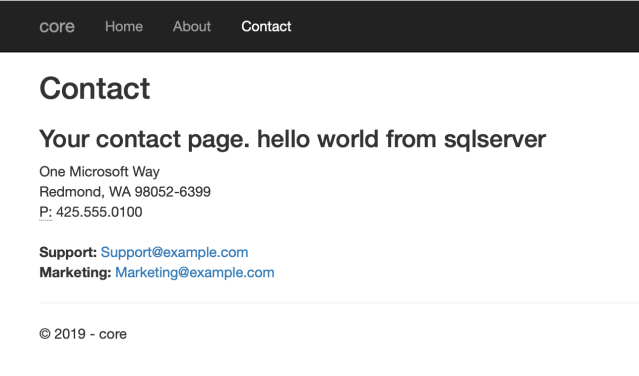
After the app is restarted the Contact page shows us “hello world from sqlserver”.
Tip
Since the Sql Server is hosted outside of Cloud Foundry, you can reference it while debugging. Just add the connection information to the appsettings.json and load it in the program.cs.
{
  "Logging": {
    "IncludeScopes": false,
    "LogLevel": {
      "Default": "Warning"
    }
  },
  "vcap:services" : {
    "user-provided": [
      {
        "name": "mySqlServerService",
        "instance_name": "mySqlServerService",
        "binding_name": null,
        "credentials": {
          "connectionstring": "Server=tcp:cfnorthwind.database.windows.net,1433;Initial Catalog=Northwind;Persist Security Info=False;User ID=eric@cfnorthwind;Password=4Pjby8$wTk;MultipleActiveResultSets=False;Encrypt=True;TrustServerCertificate=False;Connection Timeout=30;"
        },
        "syslog_drain_url": "",
        "volume_mounts": [],
        "label": "user-provided",
        "tags": []
      }
    ]
  }
}
public static IWebHost BuildWebHost(string[] args) =>
  WebHost.CreateDefaultBuilder(args)
         .ConfigureAppConfiguration((builderContext, configBuilder) =>
         {
            // will be overwritten in Cloud Foundry
            configBuilder.AddJsonFile("appsettings.json");
         })
         .AddCloudFoundry()
         .UseStartup<Startup>()
         .Build();
References
https://docs.cloudfoundry.org/devguide/services/user-provided.html
https://github.com/SteeltoeOSS/Configuration/issues/40





 .NET Development by Eric