Upload progress in WCF

Uploading a file in WCF is done via a stream that is send to the service in a message. The service then reads the stream to the end and writes everything to disk or memory or whatever. Now I want to report the progress of this file upload to my user. Here is how it’s done: create your own stream implementation and report progress from the Read method. Origional idea is here

// report progress of the stream read with event ProgressChanged
public class StreamWithProgress : System.IO.Stream
{
   private readonly System.IO.FileStream file;
   private readonly long length;
   private long bytesRead;

   public event EventHandler<decimal> ProgressChanged;

   public StreamWithProgress(System.IO.FileStream file)
   {
      this.file = file;
      length = file.Length;
      bytesRead = 0;
      if (ProgressChanged != null) ProgressChanged(this, 0));
   }

   public override int Read(byte[] buffer, int offset, int count)
   {
       int result = file.Read(buffer, offset, count);
       bytesRead += result;
       // report percentage read
       if (ProgressChanged != null) ProgressChanged(this, 100*bytesRead/length));
       //System.Threading.Thread.Sleep(10); // for simulating slow connection
       return result;
    }

   // other stuff you want, like overrides that throw NotImplementedException
}
// usage snippet
using (var stream = System.IO.File.OpenRead(fileName))
{
   using (var progressStream = new StreamWithProgress(stream))
   {
      progressStream.ProgressChanged += new EventHandler<decimal>(UploadProgressChanged);
      var msg = new MessageWithStream(progressStream);
      using (var proxy = CreateAndOpenProxy(Server, Username, Password))
      {
         proxy.UploadFile(msg);
      }
   }
}
Posted in Development | Tagged , , | Leave a comment

Remote trace listener

Code first, ask questions later

// servicecontract
[ServiceContract]
public interface ITraceWritable
{
   [OperationContract]
   void Write(string msg);
}
// proxy
public partial class RemoteTraceClient : ClientBase<ITraceWritable>, ITraceWritable
{
   public RemoteTraceClient() : base(new NetTcpBinding(), new EndpointAddress("net.tcp://localhost:9000/tracer")) { }
   public void Write(string msg)
   {
      Channel.Write(msg);
   }
}
// TraceListener implementation
public class RemoteTraceListener : TraceListener
{
   public override void WriteLine(string message)
   {
      Write(message + "\n");
   }
   public override void Write(string message)
   {
      using (var client = new RemoteTraceClient())
      {
         client.Open();
         client.Write(message);
         client.Close();
      }
   }
}
// Service implementation
[ServiceBehavior(InstanceContextMode=InstanceContextMode.Single)]
public class TraceLog : ITraceWritable
{
   public void Write(string msg)
   {
      Console.Write(msg);
   }
}
// usage in application to trace to
using (ServiceHost host = new ServiceHost(new TraceLog(), new Uri("net.tcp://localhost:9000/tracer")))
{
   host.AddServiceEndpoint(typeof(ITraceWritable), new NetTcpBinding(), "");
   host.Open();
   Console.WriteLine("Press enter to exit");
   Console.ReadLine();
   host.Close();
}

// usage in application to trace from
System.Diagnostics.Trace.Listeners.Add(new RemoteTraceListener());
System.Diagnostics.Trace.TraceInformation("Added remote tracelistener");

Now my trace messages are directly visible in a console window. This is a great help with debugging. Of course this can be applied to existing applications via the config file….

<system.diagnostics>
  <trace>
    <listeners>
      <add name="remote" type="[NameSpace].RemoteTraceListener, [Assembly]"/>
    </listeners>
  </trace>      
</system.diagnostics>
Posted in Development | Tagged , , | 2 Comments

Azure Tables loadtest

Our Session data is saved in Azure Tables. It is identified with a GUID and grouped by Instruments. But we didn’t use PartitionKey or RowKey in our implementation.

The PartitionKey hands the ability to logicaly group data. The RowKey identifies the records within these groups. Togheter the PartitionKey and the RowKey form the unique identification.

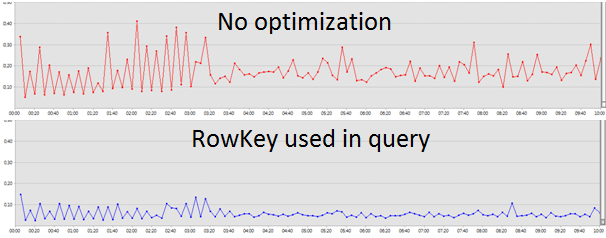
But just by using the InstrumentId as PartitionKey and the SessionId as Rowkey no performance difference was achieved. We had to change the queries. The field PartitionKey is used in stead of the InstrumentId in where clauses. The same for the field RowKey and SessionId.

// no optimization, by using the Id field in the query
return Sessions.Where(entity => entity.Id.Equals(sessionId.ToString())).FirstOrDefault();

// correct usage of RowKey
return Sessions.Where(entity => entity.RowKey.Equals(sessionId.ToString())).FirstOrDefault();

Meassuring the create, read, update and delete of up to 200 users in a loadtest gave us the proof that using PartitionKey and RowKey did pay off. In the graphs below you can see the average time needed for reading a record by its Id. After optimization the RowKey became the Id.

Posted in Development | Tagged , , , | Leave a comment

Start Azure Storage Emulator

After my upgrade to SDK 1.3 my unittests were unable to start the Storage Emulator. I needed to update my references to the new SDK folder. Also I now have to include a reference to DevelopmentStorage.Utilities.dll.
Without these updates the unittests failed with FileNotFound exceptions.

Posted in Development | Leave a comment

WPF Styles and triggers

Whenever no selection is made from all checkboxes I want the user to see an orange border around the checkboxes. This is not a validation error, but a warning this is not the intended use. My style in XAML looks like this

<Style x:Key="WarningNoSelection" TargetType="{x:Type Border}">
   <Style.Triggers>
      <MultiDataTrigger>
         <MultiDataTrigger.Conditions>
            <Condition Binding="{Binding Path=AdminRole}"     Value="False" />
            <Condition Binding="{Binding Path=DataRole}"      Value="False" />
            <Condition Binding="{Binding Path=WebServer}"     Value="False" />
            <Condition Binding="{Binding Path=ResourceRole}"  Value="False" />
            <Condition Binding="{Binding Path=DataEntryRole}" Value="False" />
         </MultiDataTrigger.Conditions>
         <MultiDataTrigger.Setters>
            <Setter Property="BorderBrush" Value="Orange"/>
         </MultiDataTrigger.Setters>
      </MultiDataTrigger>
   </Style.Triggers>
</Style>

With the debugger described here. I found that the trigger was working but stil no orange border around my checkboxes. The problem was the BorderBrush property specified in the Border Tag. After removing that I got my orange border when no checkbox was checked.

<!--
<Border BorderBrush="Silver" Style="{StaticResource WarningNoSelection}" BorderThickness="1">
-->
<Border Style="{StaticResource WarningNoSelection}" BorderThickness="1">
    <StackPanel>
        <CheckBox Content="Admin"     IsChecked="{Binding Path=AdminRole}" />
        <CheckBox Content="Data"      IsChecked="{Binding Path=DataRole}" />
        <CheckBox Content="WebServer" IsChecked="{Binding Path=WebServer}" />
        <CheckBox Content="Resource"  IsChecked="{Binding Path=ResourceRole}" />
        <CheckBox Content="DataEntry" IsChecked="{Binding Path=DataEntryRole}" />
    </StackPanel>
</Border>
Posted in Development | Tagged , , | Leave a comment
