
In my previous post about TFS Express I installed it side-by-side with Visual Studio 2010. This gave me some compatibility issues when running unit tests with code coverage. To be able to demo some things offline I did needed a working environment and installed a fresh Windows 8 machine with Visual Studio 2012 and TFS Express.
The installation was with all the defaults just a clicking exercise. Now with compatible versions of Visual Studio and TFS I can just create a new Team Project. To demonstrate unit testing with code coverage in the build I created a simple solution with two projects, one of wich is the test project. Don’t forget to check in everything, or your first build will fail and you never know why. Didn’t happen to me, no really. Okay.
Time to create the build definitions. Go to the Team Explorer and click on the Header and select the Builds. Click New Build Definition.
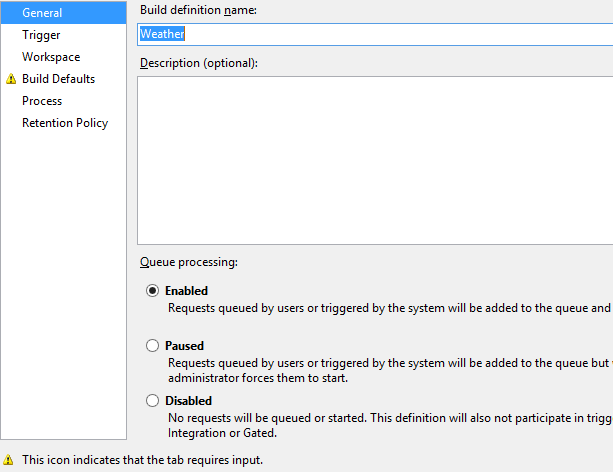
- General tab: Give it a nice name.
- Trigger, Workspace and Retention Policy tab: Leave it to defaults for demo purposes.
- Notice the exclemation mark next to Build Defaults. This is because there is no Staging location specified. Just set the option to not copy to a drop folder.
- Process tab: Edit the Automated Tests, Edit the Test Run and see some interesting settings. Make sure to select Enable Code Coverage in Options.


Microsoft describes the differences between Test Runner and MSTest in msdn article Run Tests in Your Build Process For my demo I want to use both as the results should be the same. To use the MSTest as the test runner I have to add a testsettings file to the solution. Go to Data and Diagnostics and Enable Code Coverage. Be sure to click the Configure and select the assemblies to be instrumented.

Now I have two build definitions, one with Test Runner and one with MSTest. Both do the build, but testing is a little different when it comes to code coverage. When using the Test Runner both assemblies get instrumented and produce code coverage, where with MSTest I can specify what assemblies to instrument. This default instrumentation of all assemblies can be overwritten by using the same testsettings file for the Test Runner. So it all comes down to your needs which test runner to select.
From the Build Summary you can select the Hyperlink to view the actual Test Results and from there the Code Coverage Results (context menu of the Test Results)
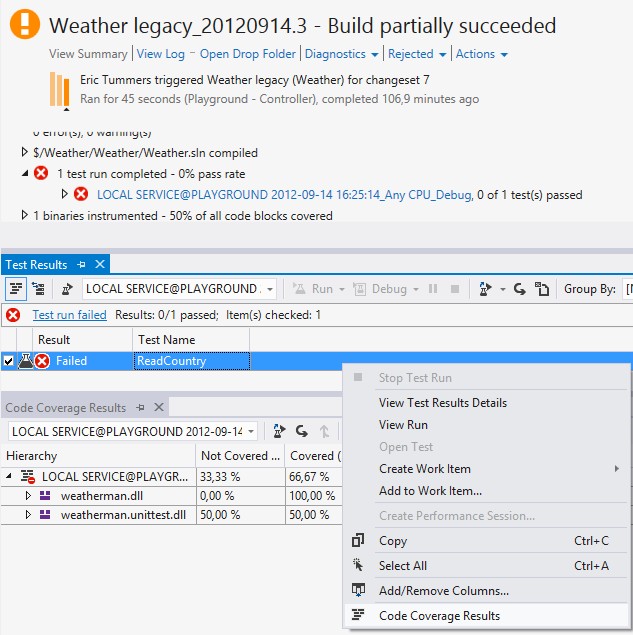
I’m happy with the local installation of Visual Studio and TFS Express for my demos. For real projects I still prefer the online TFS Preview, but that is because it is still free at the writing of this post.


 My neighbour accidently deleted all photos on the camera without having them transfered to the harddisk. The SD card was never used before and the card was not formatted after deleting all photos. This should be recoverable.



 .NET Development by Eric