Shrink MS Word document

A docx document of Microsoft Word is actual a zip archive. You can open it and see why some documents are so large yet contain only a few pages.

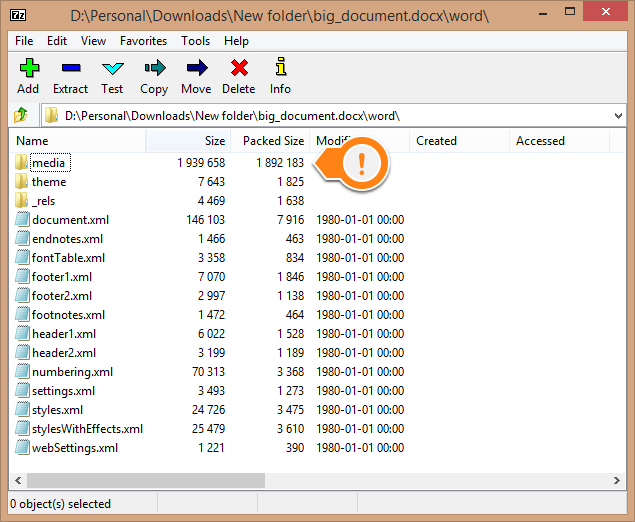
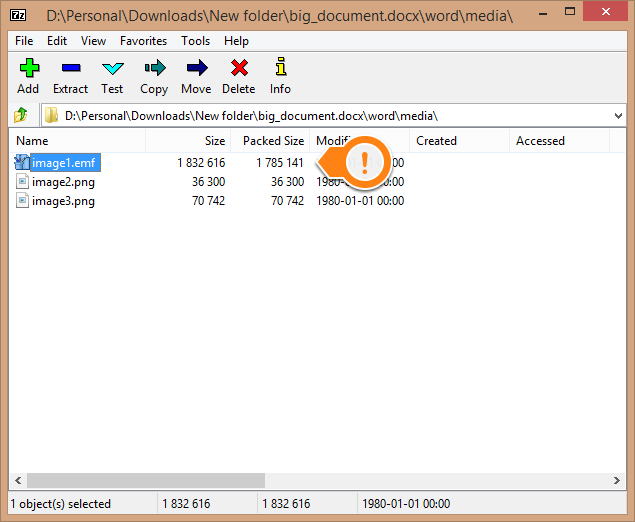
First drill into the folders to find the file that is responsible. In my case there was an uncompressed (not PNG) image in the media folder.
large.docx.7zip.1 large.docx.7zip.2
large.docx.7zip.3

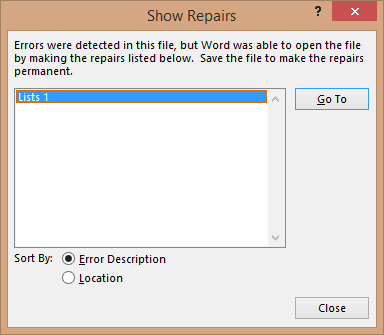
By simply removing the media item I left the document corrupted. Word tried it’s best to fix it and showed me what was recovered. Then I found out the image was used in a bullet defined in the template. But I don’t use bullets.
large.docx.7zip.5

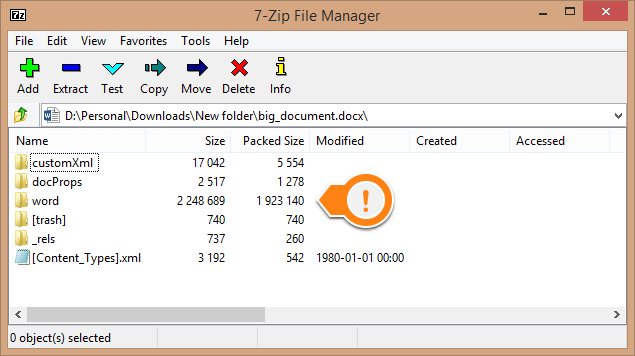
Word renamed the other images in the media folder to start the numbering from 1. My document of 3 pages has shrunken from 2 Mb to only 140 Kb. I achieved this by removing what wasn’t needed.

Posted in Uncategorized | Tagged , | Leave a comment

Powershell pipe to copy files that match a xpath query

I’m a powershell newb. There I said it. Now let me learn. Here’s what I created after some google searches.

  1. Go through all files in a directory
    Get-ChildItem . -r -file
  2. Filter on xml files
    Where { $_.Extension -EQ '.xml'}
  3. I think this can be added to the Get-ChildItem command, have fun optimizing this 🙂

  4. Take only the files that match a XPath
    Select-Xml -XPath "XPATH_HERE"
  5. you can test the xpath with online tools like this one

  6. Copy the file to a directory
    Copy-item -Destination DESTINATION_DIR_HERE

    this takes the Path from the Get-ChildItem, make sure to use -Destination to avoid parameter exception as described here

Complete line with pipes

Get-ChildItem . -r -file | Where { $_.Extension -EQ '.xml'} | Select-Xml -XPath "XPATH_HERE" | Copy-item -Destination DESTINATION_DIR_HERE
Posted in Tooling | Tagged , | Leave a comment

Week 26 roundup

Last week recap and links:

Image courtesy of kanate / FreeDigitalPhotos.net

Image courtesy of kanate / FreeDigitalPhotos.net

What are your best reads this week? Leave them in the comments below.

Posted in Uncategorized | Tagged , , , | Leave a comment

Solve concurrency database issues in nServicebus

When we configure nServicebus to run with multiple thread (MaximumConcurrencyLevel) sometimes duplicate records are inserted. This happens when the endpoint has been down for maintenance and the queue has filled up with messages.

Repro

This is not ideal, but can be used on a multi core machine to reproduce the issue with a test. The context talks to a real database, so this is an integration test.

The pseudo code in the Handler is:

  1. Find the existing record
  2. If found update the record
  3. Else insert a record

The test creates 2 messages and 2 tasks, but you can create more. Our repro was with 4 messages/tasks. The Handler should create a record if not found in the database, else do an update.

[Fact]
public void MyHandler_Concurrency_repro()
{
  var message1 = new MyMessage { Value = 1 };
  var message2 = new MyMessage { Value = 1 };
  // repeat ... 
  var T1 = Task.Factory.StartNew(() =>
     Test.Handler<MyHandler>(bus => new MyHandler(CreateContext()))
         .OnMessage(message1)
  );
  var T2 = Task.Factory.StartNew(() =>
     Test.Handler<MyHandler>(bus => new MyHandler(CreateContext()))
         .OnMessage(message2)
  );
  // repeat ...
  Task.WaitAll(T1, T2, ...);
  var context = CreateContext();
  var messageCount = context.Messages.Where(x => x.Value == 1).Count();
  Assert.Equal(1, messageCount);
}

Solutions

First we tried to start a transaction before the Find and commit it after the update/insert. Unfortunately a deadlock occurred

System.Data.SqlClient.SqlException : Transaction (Process ID 54) was deadlocked on lock resources with another process and has been chosen as the deadlock victim. Rerun the transaction.

We could add a Unique index to the database to disallow inserting the same record and a Timestamp column for update concurrency. But the column is nullable. Even the trick with a computed column described here is not fool proof. We don’t know the identity column value would be unique.

The code works when it is executed on a single thread. Why not force that?

Locking

We introduced a static object for locking and forced the threads to wait their turn.

public class MyHandler : IHandleMessages<MyMessage> {
   static readonly object _concurrencySolution;
   static MyHandler() { 
     _concurrencySolution = new object();
   }
   public void Handle(MyMessage message) {
     lock(_concurrencySolution) {
       // Find
       // Insert of Update
     }
   }
}

This defies the purpose of multiple threads as they have to wait for the other threads to release the lock. But at least no duplicates in the database.

Posted in Development | Tagged , , , , , , | Leave a comment

MSBuild OutDir per project in solution

We use a dedicated project file for building our solution/projects. The automated build sometimes complains about failing unit tests due to incompatible assembly versions. By building every project to their own OutDir we solved the issue.

MSBuild tasks

Install the MSBuild tasks with the package manager console and add the .build folder it creates to source control.

install-package MSBuildTasks

Undo any changes to the project and package.config. The .build folder is all you’ll need.

Build project

Change the build project to get the projects in the solution using the MSBuild tasks.

<Project ToolsVersion="4.0" DefaultTargets="Build" 
         xmlns="http://schemas.microsoft.com/developer/msbuild/2003">

 <PropertyGroup>
  <!-- Needed to import the assembly from the right location -->
  <MSBuildCommunityTasksPath>$(MSBuildThisFileDirectory).build</MSBuildCommunityTasksPath>
  <BuildOutput>$(MSBuildThisFileDirectory)bin</BuildOutput>
  <Configuration>Release</Configuration>
 </PropertyGroup>

 <!-- Needs MSBuildCommunityTasksPath to be set -->
 <Import Project="$(MSBuildThisFileDirectory).build\MSBuild.Community.Tasks.Targets"/>

 <Target Name="Build" DependsOnTargets="GetProjectsFromSolution">
  <!-- Build every project in the solution -->
  <MSBuild Projects="%(ProjectFiles.Fullpath)"
           <!-- OutDir specifies the location the assemblies end up -->
           Properties="Configuration=$(Configuration);
                       OutDir=$(BuildOutput)\%(ProjectFiles.Filename)\"
           Targets="Build"/>
 </Target> 
</Project>

References

Posted in Tooling | Tagged , | Leave a comment