JSONPackage did not load correctly

Solution found on Chris Miller’s blog.

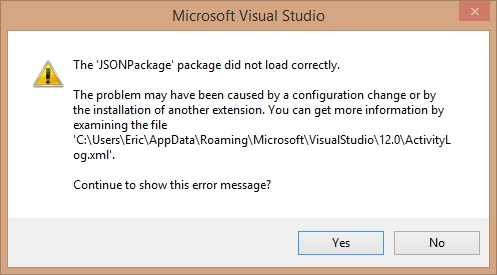
After some system cleanup my Visual Studio would complain about the JSONPackage when I wanted to open a file with a specific editor.
jsonpackage.did.not.load.correctly
This was the first message in a range

  • CreateInstance failed for package [JSONPackage]
  • CreateInstance failed for package [ScssPackage]
  • CreateInstance failed for package [LessPackage]

As Chris advises I renamed the ComponentModelCache folder and started Visual Studio. The folder was recreated and the problem was resolved.

Posted in Tooling | Tagged | Leave a comment

Remote Debugging to Azure VM

After setting up my test environment in Azure, I wanted to do some remote debugging to it. This can be done with the remote debugging tools from Microsoft and Visual Studio. I added some steps to my test environment automation script and now have the option to start debugging when I need to with minimal setup required.

Automation

I downloaded the Remote Debugging Tools from Microsoft and put the installer in dropbox. Then created a public link to the file. I just needed a point to download it from.

In a powershell session I download and install the tools.

$rtoolsdownload="public_dropbox_link_to_rtools"
Invoke-Command -Session $adminSession -ScriptBlock {
    param([String]$file)
    $exe = "c:\remote_debugging_tools.exe"
    Invoke-WebRequest $file -OutFile $exe
    Unblock-File $exe
    Start-Process -FilePath $exe -ArgumentList /q -Wait
} -ArgumentList $rtoolsdownload

To enable remote debugging some security policy settings must change. Details in the references at the end of this post.

Invoke-Command -Session $adminSession -ScriptBlock {
    secedit /export /cfg c:\secpol.cfg
    (gc C:\secpol.cfg).replace("Guest only - local users authenticate as Guest", "Classic - local users authenticate as themselves") | Out-File C:\secpol.cfg
    secedit /configure /db c:\windows\security\local.sdb /cfg c:\secpol.cfg /areas SECURITYPOLICY
    rm -force c:\secpol.cfg -confirm:$false
}

VPN

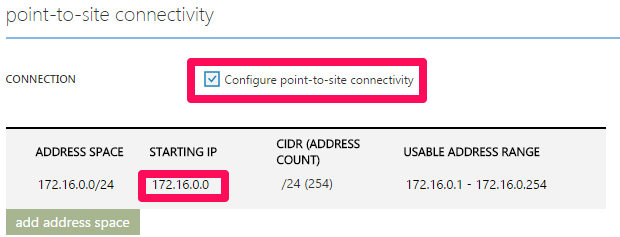
To add my local machine to the Virtual Network I setup a point-to-site VPN. On the Windows Azure Portal go to the Virtual Network you use for the VM. Go to the Configuration tab and check the Configure point-to-site connectivity. Set the Starting IP (this is a dropdown list when you click it) to something that does not give the red exclamation mark.

vpn1

Now the section below will notify you it needs a Gateway. Click add gateway. Change the starting IP to the first address in the Usable Address Range (in this case change the last 0 in 4). Now Click Save and wait for the changes to be applied.

vpn2

On the Dashboard tab the Gateway is displayed as not created. Click Create Gateway, this will take up to 15 minutes. Check back later if the gateway was created.

vpn3

Open up a Visual Studio Command prompt. Create a selfsigned root certificate with the line below.

makecert -sky exchange -r -n "CN=MyNewNetwork" -pe -a sha1 -len 2048 -ss My "MyNewNetwork.cer"

Upload the MyNewNetwork.cer on the Certificate tab of the Virtual Network in the Azure Portal. Then create a certificate to authenticate the client with the line below.

makecert.exe -n "CN=MyDeveloperNetwork" -pe -sky exchange -m 96 -ss My -in "MyNewNetwork" -is my -a sha1

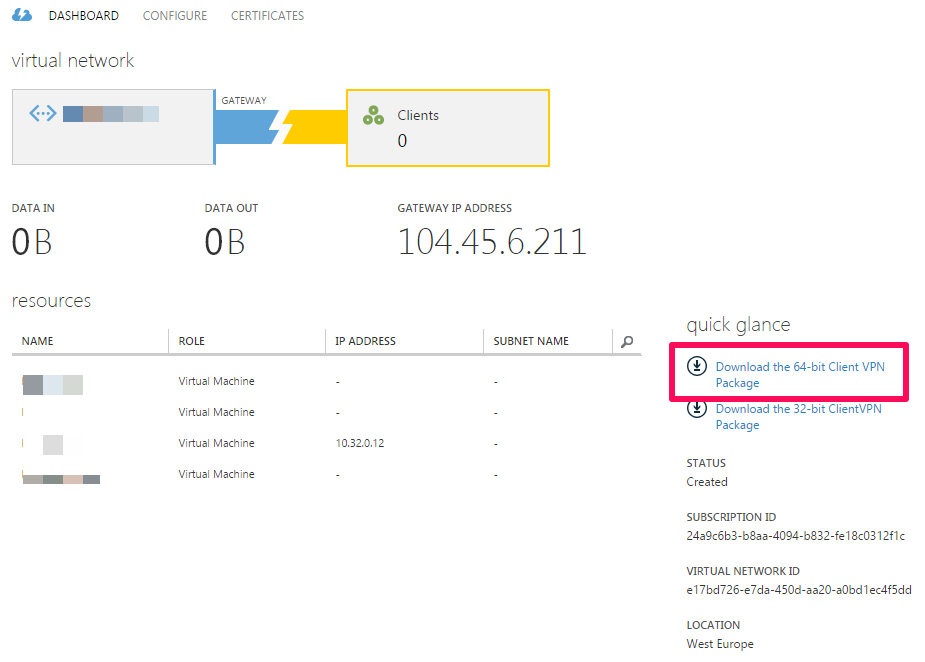
Now wait for the gateway to be created (yellow) and download the client VPN from the dashboard tab. Unblock the downloaded file and install it.

vpn4

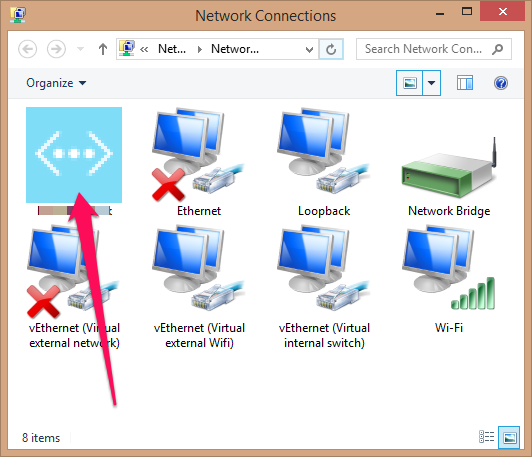
You’ve now created the VPN and can start a connection.
vpn5

Debugging

The previous scripts are all part of my test environment automation script and the VPN is already setup. Now when I want to start debugging I

  1. open the VPN tunnel,
  2. remote desktop to the machine to start the remote debugging tools,
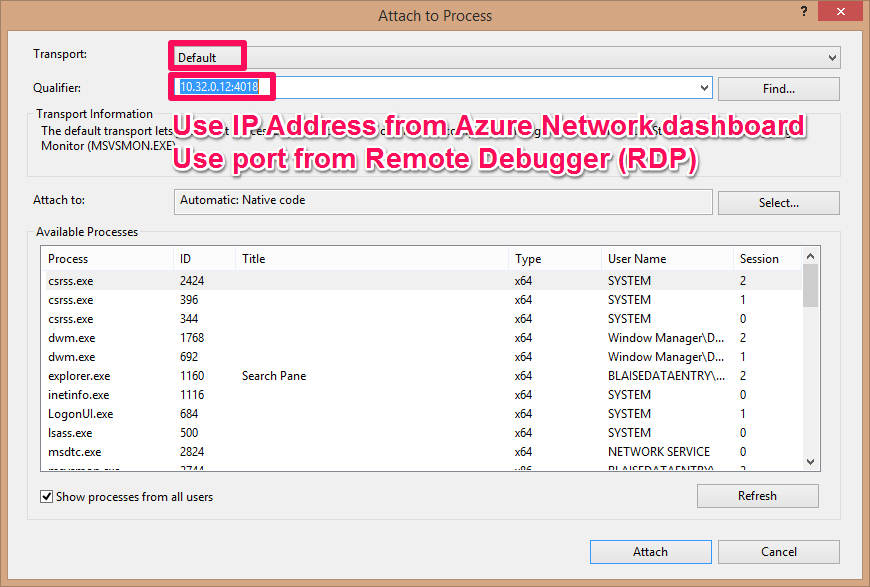
  3. start visual studio and attach to the remote machine for debugging.

attach_to_process
Easy as that.

TLDR

Add Remote Debugging tools setup to your automation script and use point-to-site VPN to do remote debugging.

References

Remote debugging and diagnostics on MSDN.

Posted in Development | Tagged , , , | Leave a comment

Week 47 roundup

Last week recap and links:

Image courtesy of kanate / FreeDigitalPhotos.net

  • Scott Hanselman uses Azure Mobile Services with dynamic schema in a hackathon. Great introduction read.
  • Pluralsight blog post IDisposable for dummies. Needed this for closing a stream returned from a WCF service and cleaning tempfiles.
  • Microsoft posted an update on azure storage service interruption or #azureoutage

Image courtesy of kanate / FreeDigitalPhotos.net

What are your best reads this week? Leave them in the comments below.

Posted in Uncategorized | Tagged , , | Leave a comment

Automate test environment with Azure Virtual Machines

Setting up a test environment in Windows Azure can be automated with powershell. Below are some parts of my script.

Setup

You can download and install the Azure PowerShell modules by running the Microsoft Web Platform Installer.
The first step in my scripts is to connect to my subscription.

Add-AzureAccount
$subscription="Visual Studio Premium met MSDN"
Set-AzureSubscription -SubscriptionName $subscription

The first statement (Add-AzureAccount) will prompt you for the credentials, the second will select the subscription to use. I’m using a MSDN subscription with some free azure credit.

Virtual Network

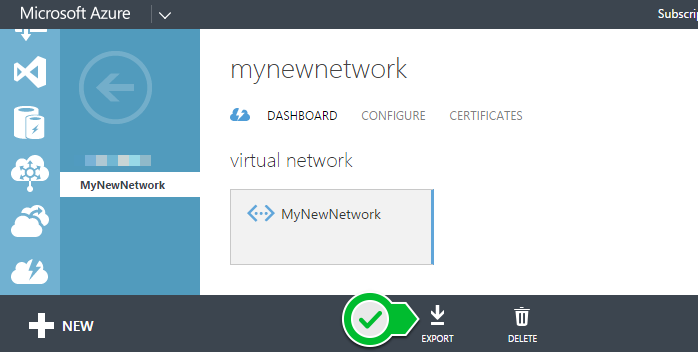
Best practice is to create a virtual network. In my VM on Virtual Network post I’ve created a virtual network. You can export the settings to file. That file is imported in the script below.
exportvirtualnetwork

$networkConfig="MyNewNetwork.xml"
Set-AzureVNetConfig -ConfigurationPath $networkConfig

The script can be run multiple times, when the network already exists a warning is displayed.

Virtual Machine

Now create the virtual machine. Select the Image to use (Windows Server 2012 R2 …) and the storage account and the credentials and the ports. A lot going on here, but that is why I use automation. Make sure to clean up previous created virtual machines (line 11)

$service = "mytestenvironment" #must be unique
$size = "Small"
$un = "boss" #some valid username
$pwd = "p@ssw0rd" #some valid password
$image = Get-AzureVMImage | where {$_.Label -eq 'Windows Server 2012 R2 Datacenter, October 2014'}
$storage = "myteststorage"
$adminvm = "admin"
# create the storage (errors are ignored)
New-AzureStorageAccount -StorageAccountName $storage -Location $location -ErrorAction Ignore
# remove old test virtual machine
Get-AzureVm -ServiceName $service -Name $adminvm -WarningAction Ignore | Remove-AzureVM -DeleteVHD
# set the storage account for creating the new vm
Set-AzureSubscription -SubscriptionName $subscription -CurrentStorageAccountName $storage
# create the new vm with public port 80, credentials and image on the virtual network
New-AzureVMConfig -Name $adminvm -InstanceSize $size -ImageName $image.ImageName |
  Add-AzureProvisioningConfig -Windows -AdminUsername $un -Password $pwd |
  Add-AzureEndpoint -Protocol tcp -LocalPort 80 -PublicPort 80 -Name 'Web' |
  New-AzureVm -ServiceName $service -VNetName $network -Location $location -WaitForBoot

Powershell Session

By default windows azure adds a powershell endpoint to new virtual machines. I use this endpoint to start a powershell session.

$secPassword = ConvertTo-SecureString $pwd -AsPlainText -Force
$credential = New-Object System.Management.Automation.PSCredential($un, $secPassword)
#Less secure, but no certificate needed
$option = New-PSSessionOption -SkipCACheck
#Get the powershell endpoint/uri
$uriadmin = Get-AzureWinRMUri -ServiceName $service -Name $adminvm
#Start powershell session with credentials
$sessionAdmin = New-PSSession -ConnectionUri $uriadmin -Credential $credential -SessionOption $option

Configure and install software

Now I have a running Virtual Machine and a powershell session to it.
First I’ll punch some holes in the firewall for communication between the virtual machines over the virtual network.

Invoke-Command -Session $sessionAdmin -ScriptBlock {
    New-NetFirewallRule -Direction Inbound -Action Allow -LocalPort 31,32,33,80 -Protocol TCP -DisplayName "Some Service Ports"
}

Then install some windows features

Invoke-Command -Session $sessionAdmin -ScriptBlock {
    install-windowsfeature web-server
    install-windowsfeature web-metabase
    install-windowsfeature web-asp-net45
}

Finally install your software and start running your tests.

Quirks

Before the October 2014 release of the Windows 2012 R2 image I needed to RDP into the machine or my software (MSI) installation would fail.

References

Posted in Tooling | Tagged , , , | 2 Comments

Azure VM on Virtual Network

Everybody that has been working with Azure Virtual Machine for some time will tell you to put VM’s in a Virtual Network. I’ve written about moving VM’s or creating VPN. This post is about the time I was smart enough to follow best practice on creation.

Virtual Network

First create the virtual network. Just use the Quick Create, give it a name and create it.
MyVirtualNetwork
Now that we have a virtual network, let’s create some virtual machines.

Virtual Machine

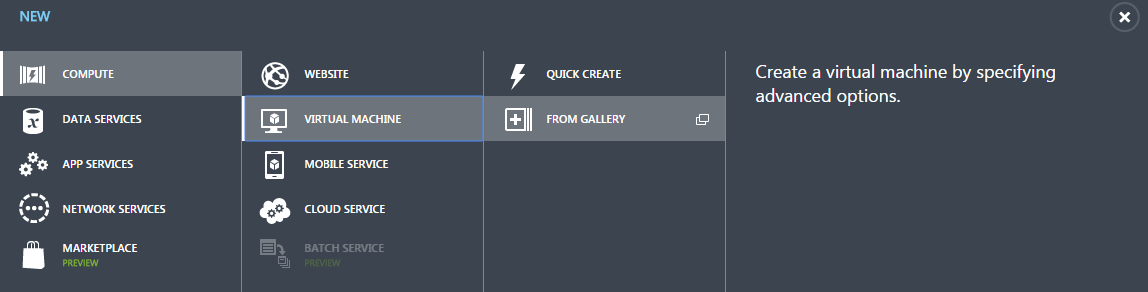
To create the virtual machine(s) use the wizard as the Quick Create does not offer virtual network selection.
From Gallery
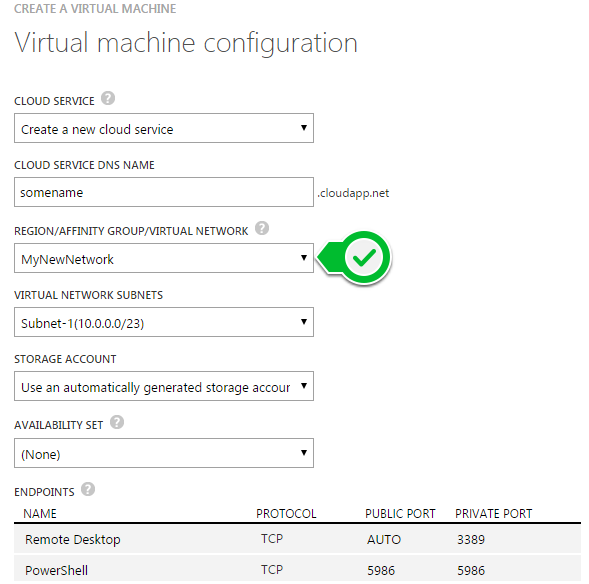
On the third tab select the virtual network you’ve created before.
Select Virtual Network
Every vm on the same virtual network can find the others by name. Just make sure to punch some holes in the firewall.

Posted in Development | Tagged , | Leave a comment