
I’ve been fine tuning my code coverage runsettings file for some time now and I’m ready to share it with the world.
You can use it in Visual Studio by setting the test settings file.
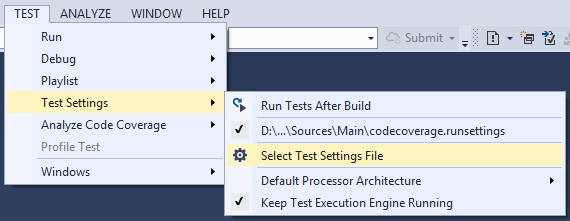
In MSBuild you can specify the runsettings file

My current codecoverage.runsettings is listed below. It excludes the .xaml.cs source files since I can only unit test non-GUI code. Also some third party libraries are excluded with the CompanyName tag.
<?xml version="1.0" encoding="utf-8"?>
<RunSettings>
  <DataCollectionRunSettings>
    <DataCollectors>
      <DataCollector friendlyName="Code Coverage"
                     uri="datacollector://Microsoft/CodeCoverage/2.0"
                     assemblyQualifiedName="Microsoft.VisualStudio.Coverage.DynamicCoverageDataCollector, Microsoft.VisualStudio.TraceCollector, Version=11.0.0.0, Culture=neutral, PublicKeyToken=b03f5f7f11d50a3a">
        <Configuration>
          <CodeCoverage>
            <ModulePaths>
              <Include>
              </Include>
              <Exclude>
              </Exclude>
            </ModulePaths>
            <UseVerifiableInstrumentation>True</UseVerifiableInstrumentation>
            <AllowLowIntegrityProcesses>True</AllowLowIntegrityProcesses>
            <CollectFromChildProcesses>True</CollectFromChildProcesses>
            <CollectAspDotNet>False</CollectAspDotNet>
            <Functions>
              <Exclude>
                <Function>^std::.*</Function>
                <Function>^ATL::.*</Function>
                <Function>.*::__GetTestMethodInfo.*</Function>
                <Function>^Microsoft::VisualStudio::CppCodeCoverageFramework::.*</Function>
                <Function>^Microsoft::VisualStudio::CppUnitTestFramework::.*</Function>
                <Function>.*::YOU_CAN_ONLY_DESIGNATE_ONE_.*</Function>
              </Exclude>
            </Functions>
            <Attributes>
              <Exclude>
                <Attribute>^System.Diagnostics.DebuggerHiddenAttribute$</Attribute>
                <Attribute>^System.Diagnostics.DebuggerNonUserCodeAttribute$</Attribute>
                <Attribute>^System.Runtime.CompilerServices.CompilerGeneratedAttribute$</Attribute>
                <Attribute>^System.CodeDom.Compiler.GeneratedCodeAttribute$</Attribute>
                <Attribute>^System.Diagnostics.CodeAnalysis.ExcludeFromCodeCoverageAttribute$</Attribute>
              </Exclude>
            </Attributes>
            <Sources>
              <Exclude>
                <Source>.*\\atlmfc\\.*</Source>
                <Source>.*\\vctools\\.*</Source>
                <Source>.*\\public\\sdk\\.*</Source>
                <Source>.*\\microsoft sdks\\.*</Source>
                <Source>.*\\vc\\include\\.*</Source>
                <Source>.*\.xaml.cs$</Source>
              </Exclude>
            </Sources>
            <CompanyNames>
              <Exclude>
                <CompanyName>.*microsoft.*</CompanyName>
                <CompanyName>.*galasoft.*</CompanyName>
                <CompanyName>.*sourceforge.net.*</CompanyName>
              </Exclude>
            </CompanyNames>
            <PublicKeyTokens>
              <Exclude>
                <PublicKeyToken>^B77A5C561934E089$</PublicKeyToken>
                <PublicKeyToken>^B03F5F7F11D50A3A$</PublicKeyToken>
                <PublicKeyToken>^31BF3856AD364E35$</PublicKeyToken>
                <PublicKeyToken>^89845DCD8080CC91$</PublicKeyToken>
                <PublicKeyToken>^71E9BCE111E9429C$</PublicKeyToken>
                <PublicKeyToken>^8F50407C4E9E73B6$</PublicKeyToken>
                <PublicKeyToken>^E361AF139669C375$</PublicKeyToken>
              </Exclude>
            </PublicKeyTokens>
          </CodeCoverage>
        </Configuration>
      </DataCollector>
    </DataCollectors>
  </DataCollectionRunSettings>
</RunSettings>


 First I updated to Yosemite. The app store makes this easy. After half an hour the setup wizard asked me to log in with my
  Aperture is not working, but I decided before the update to start using the Photos app. On first launch the Photos app imports to Aperture/iPhoto library and offers an iCloud upload. All things in time, first do the import without iCloud upload. Again a process without any hassle.
 Last step in my update was El Capitan. Some internet search made me comfortable with another big OS update. This one should help speed up the system. Again updating via the App Store worked as it should. Again I provided the iCloud credentials to finish the update. Even the Trim Enabler was working (Intel 330 180 Gb). After a small optimization period the system was in deed snappier. Remember I have the oldest macbook compatible with El Capitan.


