Run unit tests in 64-bit

Some unit tests fail since my “upgrade” to Windows 8 64 bit coming from a 32 bit installation. The exception is shown below

System.BadImageFormatException: Could not load file or assembly ‘XXX SQLite’ or one of its dependencies. An attempt was made to load a program with an incorrect format.

I changed the Hosts setting as described here and everything works fine again.

The unit tests that failed were integration tests. Changing the environment should not have this impact on regular unit tests!

Posted in Test | Tagged , , , , | Leave a comment

Change Visual Studio background color

The background color of Visual Studio 2010 is a dark blue gradient. Problem is the gradient gives a flickering effect on external monitors when the frequency is under 75 Hz.
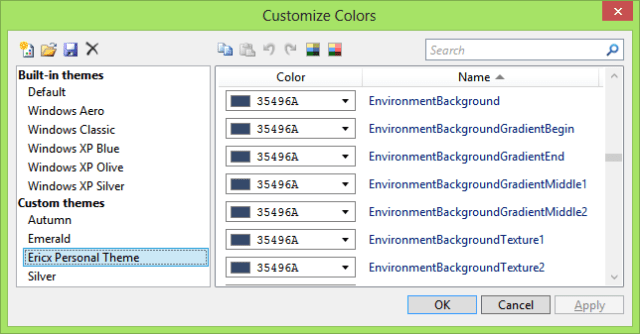
I want to change it to a solid color. Visual Studio Color Theme Editor can do this for me.

Background Color settings in Visual Studio Color Theme Editor

Posted in Tooling | Tagged , , , | Leave a comment

Remote debugger setup

Setting up the remote debugger from Windows 8 (Visual Studio) to Windows XP SP3 (Program) was a fight, but I won. Read my steps below.

Program machine ~ virtualxp

  1. Add a user for remote debugging that will be available on destination and developer environment (~remoteaccess)
  2. Install Visual Studio 2010 Remote Debugger
  3. Change security policy to allow remote debugging between domains
    Remote debugger policy setting
  4. Reboot!
  5. Login with user for remote debugging
  6. Start Visual Studio 2010 Remote Debugger and note the name of the server (Msvsmon started a new server named ‘RemoteAccess@virtualxp’. Waiting for new connections.)
  7. Start the application to debug

Visual Studio machine

  1. Add a user for remote debugging that will be available on destination and developer environment (~remoteaccess)
  2. Start Visual Studio 2010 as the user for remote debugging (Add option to Windows 8)
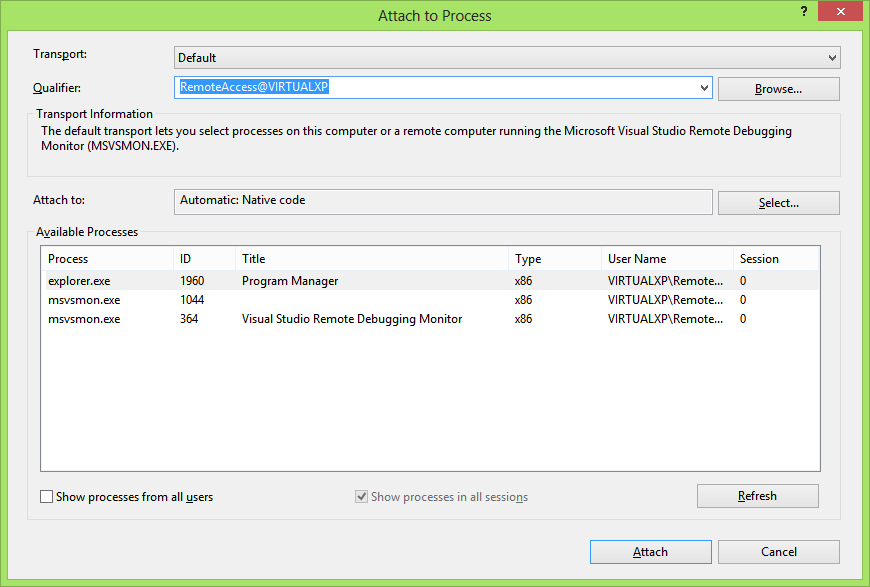
  3. Debug > Attach to Process … > select process and Attach
    Attach to process on remote machine
  4. Debug > Windows > Modules. Displays modules that have matching PDB files found and the possibility to load extra (PDB) files

I disabled both Firewalls. They will be in your way.

Posted in Development | Tagged , , , , , , | 2 Comments

ILMerge alternative with embedded resources for class library

In my previous post I pointed out how to implement the Jeffrey Richter alternative to ILmerge on WPF applications. Now I want to show you how to do this with class libraries using module initializers tool from Einar Egilsson.

Again the idea is to add all referenced assemblies as embedded resources and load them when they are needed. But a class library has no constructor or initializer in the world of C#. Where to register the AssemblyResolve eventhandler? According to Einar Egilsson’s post you can add a module initializer by injecting IL code into the assembly. The framework supports module initializers, which are called before any other code from the module (assembly) is executed, when the assembly is hit for the first time.

First add the assemblies from the references as embedded resources (see previous post for details)

Then create a public parameterless static void method. This will be called from the module initializer,

/// <summary>
/// Run on first construction of this module
/// </summary>
public static void Run()
{
   AppDomain.CurrentDomain.AssemblyResolve += (s, a) =>
   {
      // construct resource key from type name and namespace
      var name = new System.Reflection.AssemblyName(a.Name).Name;
      var resourceName = string.Format("YOUR_NAMESPACE.Resources.{0}.dll", name);
      // lookup the embedded resource for the requested type
      using (var stream = System.Reflection.Assembly.GetAssembly(typeof(YOUR_CLASSNAME))
                                                    .GetManifestResourceStream(resourceName))
      {
        if (stream != null)
        {
            // load assembly from embedded resource
            var assemblyData = new Byte[stream.Length];
            stream.Read(assemblyData, 0, assemblyData.Length);
            return System.Reflection.Assembly.Load(assemblyData);
        }
        else
        {
           // Embedded resource not found
           System.Diagnostics.Trace.TraceError("Unable to locate resource {0}", resourceName);
           return null;
        }     
     }
  };
}

Notice the YOUR_NAMESPACE and the Resources after that. The assemblies are in the Resources folder and that will be part of the name of the embedded resource. Different from my previous post load the assembly containing YOUR_CLASSNAME type as it will not be the ExecutingAssembly.

TIP: add a console application with tracelistener to you solution to figure out the unresolved resources

Add a postbuild step to the project that injects the module initializer. You can download InjectModuleInitializer from Einar Egilsson‘s site.

<Target Name="AfterBuild">
  <Exec Command='InjectModuleInitializer.exe /m:YOUR_NAMESPACE.YOUR_CLASSNAME::Run "$(TargetPath)"' />
</Target>

I was able to use this in an ASP.NET webapplication. Zip file with solution and projects download. Thumbs up!

Posted in Development | Tagged , , , , , , , , | Leave a comment

ILMerge alternative with embedded resources

We use ILMerge to merge a lot of assemblies to a single one for simpler deployment. The result is not compatible with Mono and has issues with WPF.

“… ILMerge works only on Windows-based platforms. It does not yet support Rotor or Mono … ILMerge is not able to merge WPF assemblies.”
ILMerge – Microsoft Research

On the ILMerge site there is a link to what they call “A Great Alternative to using ILMerge”: CLR via C#, Third Edition. The idea is to add all referenced assemblies as embedded resources and load them when they are needed. Here are my tips how to apply this to your project.

First I added all referenced assemblies my WPF application had. To keep things organized I added them to a folder called Resources. Next select all assemblies under Resources in the Solution Explorer and select “Embedded Resource” for the Build Action in the Properties window. This made my program around 10Mb in size after compilation.

In the constructor of the App.xaml.cs class add the AssemblyResolve eventhandler:

public App() : base()
{
    AppDomain.CurrentDomain.AssemblyResolve += (s, a) =>
    {
        var name = new System.Reflection.AssemblyName(a.Name).Name;
        var resourceName = string.Format("YOUR_NAMESPACE_HERE.Resources.{0}.dll", name);
        using (var stream = System.Reflection.Assembly.GetExecutingAssembly()
                                                      .GetManifestResourceStream(resourceName))
        {
            if (stream != null)
            {
                var assemblyData = new Byte[stream.Length];
                stream.Read(assemblyData, 0, assemblyData.Length);
                return System.Reflection.Assembly.Load(assemblyData);
            }
            else return null;
        }
    };
}

Notice the YOUR_NAMESPACE_HERE and the Resources after that. The assemblies are in the Resources folder and that will be part of the name of the embedded resource.

To be able to debug missing assemblies in the startup of your application, register an DispatcherUnhandledException handler and start a Debugger from there:

void App_DispatcherUnhandledException(object sender, DispatcherUnhandledExceptionEventArgs e)
{
    // Debugger will break on the line below
    System.Diagnostics.Debugger.Launch();
    // inspect the e.Exception
}

This will present you with an Just-In-Time Debugger dialog when an exception occurs and you can find out what happend.
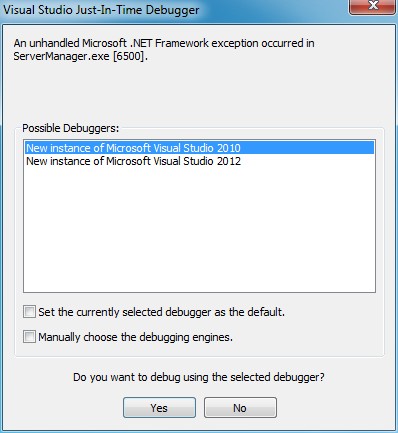
Otherwise the application just crashes and you’ll see “FileNotFoundException” in the event viewer.

Posted in Development | Tagged , , , , , , , , | 3 Comments